

If the Windows Print App encounters problems, submit print app logs first when possible. Logs help wēpa support review upload, login, or print app issues.
If the built-in log collection option does not work, use the manual log retrieval section below.
Submit Print App Logs
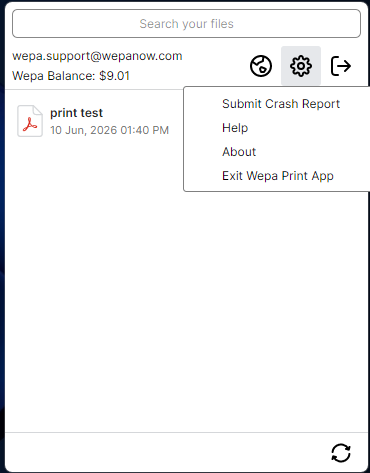
Open the Windows Print App settings view, then select Submit Crash Report to collect support logs.
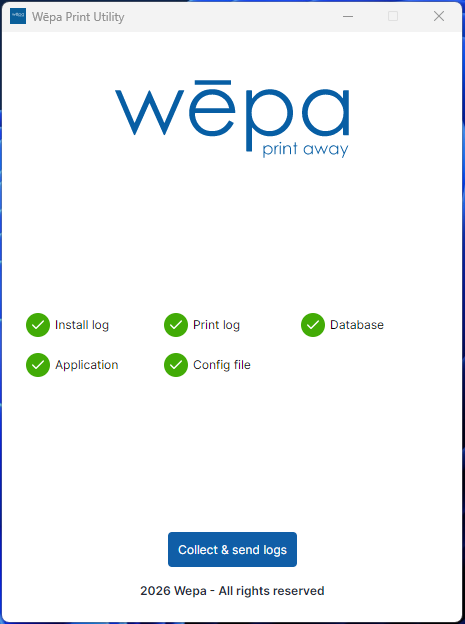
The log collection view will appear. Select Collect & send logs to collect the necessary log files.
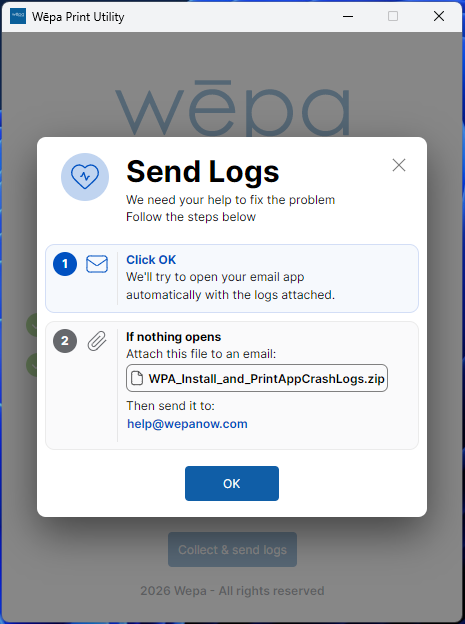
A Send Logs message will appear after the logs are collected. Select OK to open your email app automatically with the logs attached.
Manual Log Retrieval
If you cannot submit logs from the Windows Print App, manually retrieve the files below and send them to help@wepanow.com with a brief description of the issue.
| Log Type | Windows Location | What to Send |
|---|---|---|
| Main log | %LocalAppData%\Wepa\logs\PrintApp.log | Send PrintApp.log. If present, also send PrintApp.Secondary.log. If the issue happened on a previous day, also send recent archived files such as PrintApp.*.log or PrintApp.Secondary.*.log. |
| Crash logs | %LocalAppData%\Wepa\Crash Log\ | Send any recent crash log text files from this folder. |
| Install log | C:\ProgramData\Wepa\WPA_Install_Log.log | Send this file if the issue is related to installation, upgrade, uninstall, or app configuration. |
| Generated zip from utility | C:\ProgramData\Wepa\WPA_Install_and_PrintAppCrashLogs.zip | This zip file is created after the log collection utility runs. Send this file if the utility opens the folder but does not open an email window. |
| App settings | C:\ProgramData\Wepa\Settings.xml | Send this file if the issue appears related to app configuration, login behavior, timeout settings, guest printing, or default printer settings. |
Open the main log folder
Press Windows key + R, paste the following path, and press Enter:
%LocalAppData%\Wepa\logs
Attach PrintApp.log to your email. If PrintApp.Secondary.log is present, attach that file as well. If the issue happened on a previous day, also attach recent archived files such as PrintApp.*.log or PrintApp.Secondary.*.log.
Open the crash log folder
Press Windows key + R, paste the following path, and press Enter:
%LocalAppData%\Wepa\Crash Log
Attach any recent crash log text files from this folder. Crash logs are usually individual .txt files with a timestamp in the filename.
Open the install log location
Press Windows key + R, paste the following path, and press Enter:
C:\ProgramData\Wepa
Attach WPA_Install_Log.log if the issue is related to installation, upgrade, uninstall, or app configuration. If support requests app configuration details, attach Settings.xml from this folder as well.
Open the generated zip location
The generated zip file is created only after the log collection utility runs. If the utility opens a folder but does not open an email window, attach the zip file from:
C:\ProgramData\Wepa\WPA_Install_and_PrintAppCrashLogs.zip
Attach WPA_Install_and_PrintAppCrashLogs.zip to a new email and send it to help@wepanow.com with a brief description of the issue.
Log Notes
- The main log file is PrintApp.log.
- If a second instance of the app is running, PrintApp.Secondary.log may also be present.
- Logs are archived daily, with the last 5 archives kept. If the issue happened on a previous day, include recent archived files such as PrintApp.*.log or PrintApp.Secondary.*.log.
- Crash logs are written as individual .txt files with a timestamp in the filename when unhandled exceptions occur.
- The generated crash report zip, WPA_Install_and_PrintAppCrashLogs.zip, is created in C:\ProgramData\Wepa after the log collection utility runs.
- Settings.xml may be useful for troubleshooting app configuration, login behavior, timeout settings, guest printing, or default printer settings.