
9 articles about Mobile Print App

Submit Crash Report

The Windows Print App, Mac Print App, and Mobile Print App include options to submit crash reports and logs if uploading a document encounters problems.

Crash reports help wēpa support review application logs and troubleshoot upload, login, or print app issues.

Windows Print App

Open the Windows Print App settings view, then select Submit Crash Report to collect support logs.

Windows Print App settings screen with Submit Crash Report button

The log collection view will appear. Select Collect & send logs to collect the necessary log files.

Windows Print App log collection view with Collect and send logs option

A Send Logs message will appear after the logs are collected. Select OK to open your email app automatically with the logs attached.

Windows Print App confirmation message after collecting logs
Include a brief description of the issue before sending the email so wēpa support can better understand what happened.
If an email window does not open, the utility will open a folder on your computer that contains the generated log zip file. Create a new email to help@wepanow.com, attach the zip file from that folder, and include a brief description of the issue.

Mac Print App

Open the Mac Print App settings view, then select Submit Crash Report to collect support logs.

Mac Print App settings screen with Submit Crash Report option

You can also open Wepa Print App Utility from the Applications folder. It should be located beside the main Wepa Print App application.

Mac Applications folder showing Wepa Print App and Wepa Print App Utility

In Wepa Print App Utility, select Collect & send logs to collect the necessary log files.

Wepa Print App Utility with Collect and send logs option

A Send Logs message will appear after the logs are collected. Select OK to open your email app automatically with the logs attached.

Wepa Print App Utility send logs confirmation dialog
Include a brief description of the issue before sending the email so wēpa support can better understand what happened.
Mac Mail message with Wepa Print App crash logs attached
If an email window does not open, the utility will open a folder on your computer that contains the generated log zip file. Create a new email to help@wepanow.com, attach the zip file from that folder, and include a brief description of the issue.

Mobile Print App

Tap the three horizontal lines in top left corner on the main screen of Mobile Print App followed by tapping the Contact Support icon highlighted below:

Mobile Print App Contact Support option highlighted

Tap Show Logs highlighted below to open the mobile app log.

Mobile Print App Show Logs option highlighted

Next, select the share icon at the top highlighted below and select your preferred email client. An email will launch with an attached log. Enter any relevant information and send the email to help@wepanow.com.

Mobile Print App log console share icon highlighted

Wepa Express

Updated: February 19, 2025

  • Touch-free printing
  • Secure release by another person

Wepa Express allows touch-free document release and secure document release by another person. Wepa Express is available in the Wepa Mobile App and at wepanow.com.

Get Started (Mobile)

If you don’t already have it, install the Wepa mobile app.

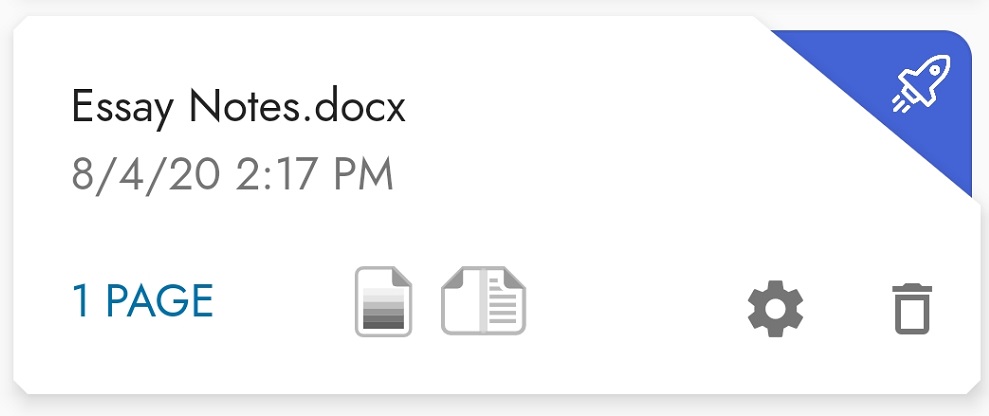
Tap the rocket to select which files to release. Files that you add in the mobile app will already be enabled.
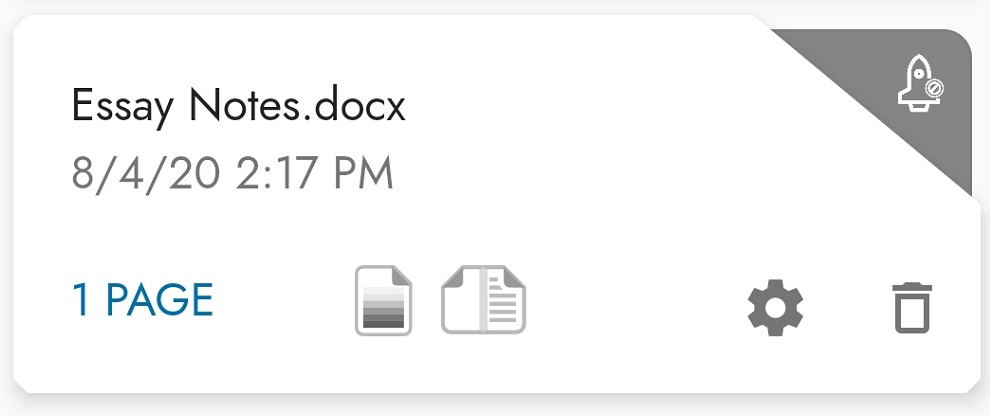
This file is disabled and will not release automatically
This file is enabled and will release automatically


Then, tap the print station in the lower right to log in to a print station, or to give a code to someone else.
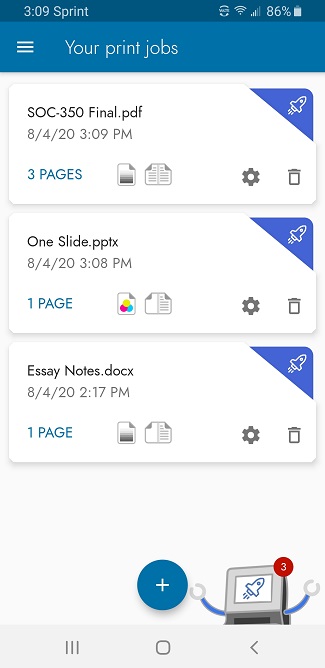
Tap the print station to proceed

The Wepa Express summary screen will tell you if you are ready to release, and it will also show a Wepa Code if your documents can be released without a payment card swipe or tap at the print station. You may be prompted to add funds or change your payment method.
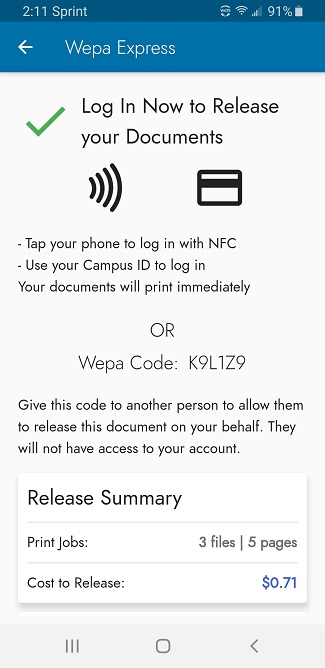
Log In

The Wepa Mobile App will tell you the best way to log in to the print station, using NFC (where available) or your campus card. Your documents will print immediately after you log in to the print station. If you need to swipe a card for payment and you do not use it to log in, you will be prompted to present the card, and then the documents will print.

Give someone the Wepa Code

Give the Wepa Code to another person to have them release the documents on your behalf (they won’t have access to your account). When the code is used, a confirmation screen will appear and the documents will print after pressing the Print button. This option is not available if a payment card needs to be presented to release the documents.

Need a reminder? Play the tutorial in the app.
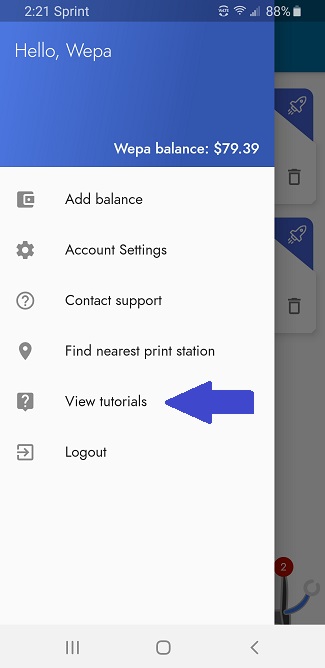
Get Started (Web)

The process is similar at wepanow.com. Select documents for release, choose your payment method, and you are ready to go!

F A Q

What is Wepa Express?
Wepa Express allows you to set up your document release ahead of time, with payment. From there, you can release the documents at any print station without having to touch the screen, or you can give a secure Wepa Code to another person to have them release the documents on your behalf.

Why should I use Wepa Express?
Wepa Express allows you to print easily without touching the print station screen. With the Wepa Mobile App, you can print files from your phone or from cloud storage sources like Google Drive and OneDrive. Select your files to release and your payment method, and all you have to do is tap your phone or swipe your card to release your documents. It’s the fastest and safest way to print!

What can I do with the Wepa Code?
Right now, the fewer people touching the print station the better. Use the Wepa Code with a staff-assisted pickup service (where available). Faculty can accept Wepa Codes for assignments and release all of the documents for the class. A group of friends can send one person to release documents for the whole group.

What if the print station doesn’t have NFC and I don’t have a login card?
Some Wepa Print Stations do not have NFC to use for login with the mobile app. If you do not have a login card, log in by username and password. After logging in, use the menu option to “Tag” a card of your choice to use for login next time. Then, sanitize your hands.

RESOURCES
How to Print: Upload / Print Methods

Traditional-iconEmail-Iconweb-icon

Cloud-iconMobile-iconUSB-icon

Multiple methods are available to print at a wēpa print station. The following post provides information on the different methods of uploading and/or printing documents:

  • Print App: Windows / Mac
  • Email-To-Print
  • Web Upload
  • Cloud Storage
  • Mobile App: Android / iOS
  • USB

Print Station Map / Locator

A Print Station Map / Locator is available on a print station, the website, Android Mobile App, or iOS Mobile App. The following posts shows how to use the print station map / locator on the the following platforms:

  • Print Station
  • Website
  • Android Mobile App
  • iOS Mobile App

Receive Empty List when Attempting to View Documents

An application update for Android 4.4 will be released in the near future that will remedy this issue. If your files fail to display on your Android device you may use a third party file manager to select your files or simply use the Email-to-Print feature. More information about Email-to-Print may be found here.