

The following support post provides details on how to upload file with the wepa print app to be printed as a booklet setting:
23 articles about Print App (Driver)
Operation could not be completed error 0x0000074 port is unknown unable to install printers when installing Windows Print App
Some Windows 10 computers encounter an error when installing our Windows Print App driver. The issue is related to permissions and prevents the installation of the Wepa printer port.
This message may appear:
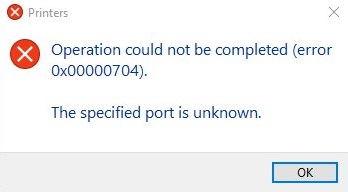
Or this message:
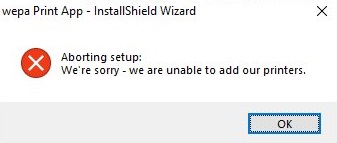
To resolve this issue, please install the Wepa printer port manually and then install the Wepa Print App for Windows.
- Download the Wepa port installer here: https://wepanow.com/downloads/WEPAPortInstaller.exe
- Run WEPAPortInstaller.exe with admin rights
- To verify that the Wepa port was installed, open the Control Panel and choose Devices and Printers. Select the Wepa printer.
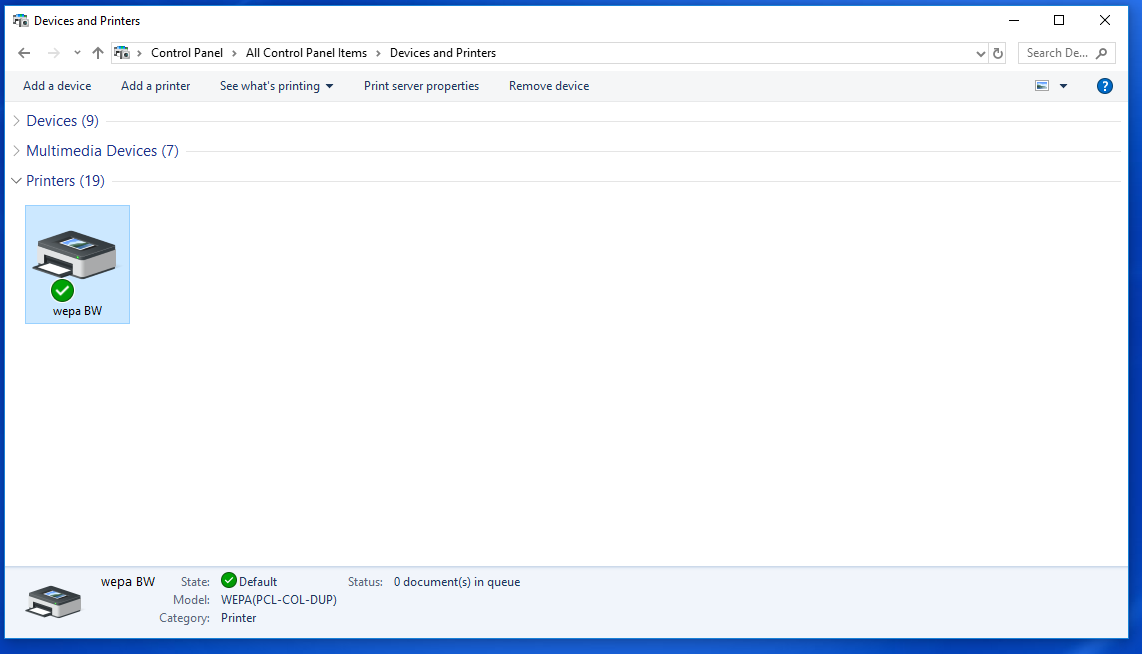
- Choose “Print server properties” at the top and go to the Ports tab
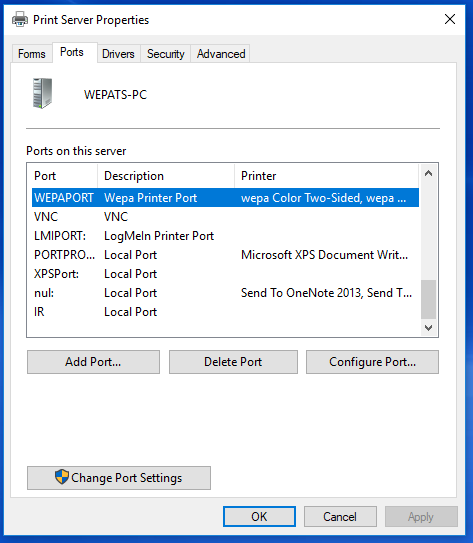
- After confirming the presence of WEPAPORT, rerun the Wepa Print App for Windows installer.
Click here for more information about the Wepa Print App for Windows.
Print PowerPoint Documents Multiple Slides Per Page
Print PowerPoint documents with multiple slides per page by using any of the print methods below:
How to make sure the wepa printer is the default printer for all users
Windows will sometimes modify the default printer for various reasons. Here is one approach that can be used to ensure that the desired printer is the default printer for your users.
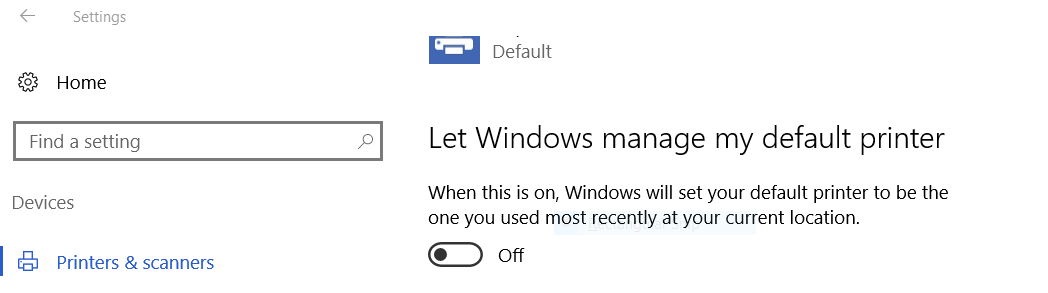
Windows 10: To use the approach below, you must disable the option “Let Windows manage my default printer”
Option 1 – GPO with rundll32
Quick Start: Execute rundll32 printui.dll PrintUIEntry /y /n “wepa BW” where “wepa BW” is the name of the desired default printer.
To set the printer using Group Policy:
- Log into the DC
- Open Group Policy Management tool
- Right click the OU for the user population and click “Create GPO for this domain and Link it here”
- Name it something, e.g. Set Default Printer
- Right click the newly created GPO and click Edit
- In the navigation tree, go to User Configuration > Windows Settings > Scripts (Logon/Logoff)
- Double click Logon
- Click Show Files, and in the Explorer window that pops up click the URL/File Path box at the top and copy that location to your clipboard.
- Right click Notepad.exe and run as administrator. You will not be able to save to the proper file path if Notepad is not run as an admin!
- Paste the following text below in to a text document@ECHO OFF
rundll32 printui.dll PrintUIEntry /y /n “wepa BW” - Click Save As, and in the file path/URL box at the top paste in the file path from a few steps above. Be sure to click All Files under the Save as Type and save it as a .bat
- Close notepad and find the Logon Properties window.
- Click Add, then Browse, then paste that same file path from above into the file path/URL box.
- Double click the .bat file you made.
- You should now see your .bat file on the Add a Script window. Click OK
- Click Apply and then OK on the logon properties window
- Exit out of the Group Policy Management Editor and go back to the Group Policy Management window.
- Right click your GPO object and click Enforced
- Double click your GPO and ensure that the links/security filtering are correct per your OUs/User Groups
- Exit out of the DC and test
Option 2 – Startup VBS script
Place a script in C:\ProgramData\Microsoft\Windows\Start Menu\Programs\Startup.
Click here to download the .vbs script.
==Script contents==
ON ERROR RESUME NEXT
Set WSHNetwork = CreateObject(“WScript.Network”)
WSHNetwork.SetDefaultPrinter “wepa BW”
(Hat tip: https://community.spiceworks.com/topic/2038589-windows-10-default-printer-setup)
How to Print: Upload / Print Methods






Multiple methods are available to print at a wēpa print station. The following post provides information on the different methods of uploading and/or printing documents:
- Print App: Windows / Mac
- Email-To-Print
- Web Upload
- Cloud Storage
- Mobile App: Android / iOS
- USB
Windows Tablet
By attaching a file to an email and sending it to print@wepanow.com, wēpa is compatible with nearly any device with an internet connection. More information can be found at the Email-to-Print post. Regarding Windows Tablets, there are two types, Windows Surface RT (Windows Surface 2 for the later generation) and Windows Surface Pro. Windows Surface RT and Surface 2 tablets do not allow the installation of third party software therefore not allowing the installation for the wēpa print driver. In this instance simply use the previously mentioned Email-to-Print feature from wēpa. If tablet is a Windows Surface Pro, simply install the Windows Print App.
Windows Print App: Color Upload – Prints Black/White
Check the following post if document uploaded through Windows Print App as Color but printed black and white:
WEPA-BW is not Available Under Printer Device Option
Uploaded Document Does NOT Appear at Print Station
Documents uploaded but do not show up in queue when logged in at wēpa Print Stations are caused by incorrect page setup settings. Below are the instructions on how to change the paper size from A4 to Letter:
Mac Print App Not Working After Install
Check the following post if Mac Print App is not working after install: