23 articles about How to Print

Print App: Upload Documents

Upload documents using the Windows Print App, Mac Print App, or Linux Print App. Open your document in its default software, select File > Print, choose a wēpa printer, then select Print.

Open the Print Window

Open the document normally within its default software, such as Word, Excel, PowerPoint, Preview, Adobe Reader, or another supported application. Then select File > Print.

Select a wēpa Printer

The print settings window will appear with a selected printer. Open the printer drop-down menu and choose one of the available wēpa printers.

wēpa BW
Prints black and white on the front of each page only.
wēpa BW Two-Sided
Prints black and white on the front and back of each page.
wēpa Color
Prints color on the front of each page only.
wēpa Color Two-Sided
Prints color on the front and back of each page.
Each printer option may have a different print cost per piece of paper. Contact wēpa support at help@wepanow.com, chat with support, or call 1-800-675-7639 for print costs at a specific institution.

Windows Print App: Print Windows

Windows PDF and Word print window examples

Mac Print App: Print Windows

PDF print window with printer selection at the top:

Mac PDF print window with printer selection at top

Word print window:

Mac Word print window

Format Settings

Choose any needed print format settings, such as printing multiple pages per sheet, page range, copies, or orientation. Review the print preview before uploading to confirm the document looks correct.

Page size note: Select Page Setup and confirm the page size is set to Letter 8.5 x 11 in. If the page size is set to something else, the document may not upload or may not appear at the print station.

After choosing a wēpa printer and confirming the format settings, select Print to upload the document. If using a public or lab computer, enter your username and password when prompted to complete the upload.

Documents Uploaded

Click the wēpa icon to see the full list of documents uploaded to the wēpa account. The wēpa icon for Windows is located in the lower-right system tray area. For Mac, it is located in the upper-right toolbar area.

Windows Print App – Documents Uploaded

Windows Print App documents uploaded list

Mac Print App – Documents Uploaded

Mac Print App documents uploaded list

Linux Print App – Documents Uploaded

Linux Print App documents uploaded list

Submit Crash Report

If you encounter issues uploading a document, select the print app icon, open settings, and choose Submit Crash Report. This helps wēpa support review logs and troubleshoot the issue.

Windows Print App – Submit Crash Report

Windows Print App Submit Crash Report menu option

Mac Print App – Submit Crash Report

Mac Print App Submit Crash Report menu option

Linux Print App – Submit Crash Report

Linux Print App Submit Crash Report menu option
If the Submit Crash Report option is unavailable, use the troubleshooting log instructions below:

Linux Print App

  • The Linux Print App is the most flexible way to print from a Linux computer.
  • Print from any software by choosing File > Print and selecting a wēpa printer.
  • The Linux Print App is currently available as a Debian package for x64 and ARM64 systems.

Quick Start: Download the Linux Print App Debian package that matches your system architecture and install it.

Download Linux Print App for deb (x64) Download Linux Print App for deb (arm64)

Website Download

Go to wepanow.com/software to download the latest version.

Latest Version: 2026.6.7

Choose the Linux Debian package that matches the computer architecture. The Debian package filename will look similar to: wepa_print_app-linux-<arch>-<version>.deb

Installation

Install the Debian package

Open Terminal in the folder where the Debian package was downloaded, then run:

sudo apt install ./wepa_print_app-linux-<arch>-<version>.deb
Replace <arch> and <version> with the exact package filename that was downloaded.

What the package installs

The Linux package installs the application, creates the required folders, and adds the wēpa CUPS printer queues.

Item Linux Location / Name
Package name wepa-lpa
Main binary /usr/lib/wepa-lpa/wepa-lpa
Command symlink /usr/bin/wepa-lpa
Crash report utility /usr/lib/wepa-lpa/CrashReporter
Shared settings file /var/lib/Wepa/Settings.xml
Log folder /var/log/com.wepa.printapp/
Spool folder /var/spool/WepaQueue/<username>/

Linux app shortcuts

After installation, the system will show shortcuts for the Wepa Print App and Wepa Print App Utility. The utility is used to collect and send logs when troubleshooting issues.

Linux Wepa Print App shortcut Linux Wepa Print App Utility shortcut

Choose personal or shared / public setup

When the application launches, select This is my personal computer if installing on a personal Linux computer or This is a shared or public computer if installing on a shared or public computer, such as a lab environment. Click Next to proceed.

Important: If you choose shared or public, this choice becomes locked and cannot be changed to the personal version. You must uninstall and reinstall if you decide you want the personal version.
Linux Print App personal or shared public computer selection screen

Select your school or institution

Select your school or institution. If you are not affiliated with one, choose A Guest User.

Linux Print App school or institution selection screen

Lab / Public Options

Confirm shared / public setup

After you choose the school, you are notified that this choice can only be changed by uninstalling and reinstalling the application.

Linux Print App warning that school selection can only be changed by reinstalling

Configure session timeout

Set a session timeout value. The Session Timeout controls when users are prompted to log out or stay signed in. Set the value to 0 to disable the session timeout when users log in and out of Linux with their own accounts.

Linux Print App session timeout setting

Configure Single Sign-On timeout

For Single Sign-On schools, configure the Single Sign On (SSO) Timeout. This controls how long users have to complete browser sign-in before the attempt is canceled.

Linux Print App SSO browser sign-in timeout setting

Configure force timeout

The Force Timeout controls how long the Print App waits for a user to log in or choose guest printing after a print request starts.

Linux Print App force timeout setting

Configure logout prompt

Enable Logout Prompt prompts users to sign out after successfully uploading a print job, which helps protect account security on shared devices.

Linux Print App enable logout prompt setting

Configure guest printing

Allow Guest Printing lets users submit print jobs without signing in or creating an account. A release code will be provided so the user can release the document at a print station.

Linux Print App allow guest printing setting

Login screen

For Single Sign-On schools, users will see a Login with School Credentials button. Selecting this option launches an external browser so users can sign in on the school’s login page. If Guest Printing is enabled, select No Account to print without signing in and receive a wēpa code.

Linux Print App SSO login screen with school credentials and guest printing options

How to Print

From any software that can print, choose File > Print, select a wēpa printer from the drop-down menu, and select Print. If you are not already signed in, a login prompt will appear.

CUPS printer queues

The Linux package installs the following wēpa CUPS printer queues:

  • wepa_BW — black and white
  • wepa_BW_Two_Sided — black and white, two-sided
  • wepa_Color — color
  • wepa_Color_Two_Sided — color, two-sided
The default installed printer is wepa_BW.

Upload processing

The Linux Print App will show the print job while it is uploading or processing.

Linux Print App showing a print job uploading

Guest release code

If guest printing is used, the Guest Printing window will process and upload the document, then provide a wēpa code to use at any print station.

Linux Print App guest print ready screen showing a wēpa code

Lab logout prompts

Lab Only: If prompt to logout after every print is enabled, a window will appear requesting the user to stay signed in or log out after each upload. Select Logout if finished printing to ensure the next user will not print to your wēpa account, or select Stay signed in if continuing to print.

Linux Print App logout after upload prompt

Lab Only: If the session timeout is enabled, a window will appear requesting the user to stay signed in or log out after the configured amount of time has passed without a print.

Linux Print App session timeout logout prompt

Settings and Troubleshooting

Submit Crash Report

Select the settings option to view additional tools and support options. Click Submit Crash Report to email necessary logs to wēpa support. If the option is unavailable, use the manual log locations below.

Linux Print App settings and support options

Wepa Print App Utility

The Wepa Print App Utility can also be used to collect and send logs if the main app cannot submit the crash report.

Linux Wepa Print App Utility status and collect logs screen

Send logs

A Send Logs message will appear after the logs are collected. Select OK to open your email app automatically with the logs attached.

Linux Wepa Print App Utility send logs dialog
Include a brief description of the issue before sending the email so wēpa support can better understand what happened.

Linux File Locations

The Linux Print App uses shared system locations for settings, logs, and spool files.

Item Linux Location Notes
Settings file /var/lib/Wepa/Settings.xml The shared lab configuration file. For deployment, install or copy the lab configuration to this path after installing the package.
Print app logs /var/log/com.wepa.printapp/ Send PrintApp.log, PrintApp.Secondary.log, wpapdfqueue_log, and any other recent files if present.
Crash logs /var/log/com.wepa.printapp/ Send any recent timestamped .txt crash files from this folder.
Spool files /var/spool/WepaQueue/<username>/ Temporary print app spool location for the Linux user.
The package creates the shared data folder and settings file if they do not already exist.

Uninstalling

To uninstall the Linux Print App on Debian-based systems, use apt remove or apt purge.

Remove the application

Use remove to uninstall the application package while leaving related configuration files behind.

sudo apt remove wepa-lpa

Purge the application and package configuration

Use purge when you want to remove the application package and package-managed configuration files.

sudo apt purge wepa-lpa

Mac Print App

  • The Mac Print App is the most flexible way to print from a Mac.
  • Print from any software by choosing File > Print and selecting a wēpa printer.
  • If you want to deploy this to multiple public computers, click here.

Quick Start: Download the Mac Print App installer and run it.

Download Mac Print App (universal)

macOS Compatibility: The Mac Print App is supported on macOS 12.0 and above. If you are using an older macOS version, contact help@wepanow.com for assistance.

Website Download

Go to wepanow.com/software to download the latest version.

Latest Version: 2026.6.7

Installation

Open the .pkg file to begin installation. If Gatekeeper is set to only allow apps from the Mac App Store, right-click or control-click the installer, select Open, then click Open on the warning dialog.

Press Continue and proceed through the installation steps.

Mac Print App installer welcome screen

Choose Continue, then accept the terms of the license agreement.

Mac Print App license agreement screen Mac Print App agree to license dialog

Select the installation destination and continue. The installer will show the standard installation location before the install begins.

Mac Print App destination selection screen Mac Print App standard install screen

When the application launches, select personal if installing on a personal computer or shared or public if installing on a shared or public computer, such as a lab environment. Click Next to proceed.

Important: If you choose shared or public, this choice becomes locked and cannot be changed to the personal version. You must uninstall and reinstall if you decide you want the personal version.
Mac Print App personal or shared public computer selection screen

Select your school or institution. If you are not affiliated with one, choose A Guest User.

Mac Print App school or institution selection screen

Lab / Public Options

After you choose the school, you are notified that this choice can only be changed by uninstalling and reinstalling the application.

Mac Print App warning that school selection can only be changed by reinstalling

Set a session timeout value. Users will be automatically logged out of the application after a set amount of time. Set the value to 0 to disable the session timeout.

Mac Print App session timeout setting

For Single Sign-On (SSO) schools, select the timeout for the user to complete sign-in in the browser.

Mac Print App SSO browser sign-in timeout setting

Choose how long to wait for a user to log in after a print request. If there is no login, the print attempt will be canceled after this amount of time.

Mac Print App login wait timeout setting

Choose whether to prompt users to log out after every print. This choice is appropriate when users do not log in and out of the Mac with their own account.

Mac Print App prompt users to log out after every print setting

Select whether the Guest Printing option is available. This option enables guest printing on the login screen. Users can upload a document to a guest account and receive a six-character wēpa code that can be used at any print station.

Mac Print App enable guest printing setting
Reminder: These choices become locked and cannot be changed. You must uninstall and reinstall to choose a different school or different options.

Choose Save to finish the setup process. The login screen may look different depending on your school’s sign-in configuration.

For Single Sign-On (SSO) schools, users will see a Login with School Credentials button. Selecting this option launches an external browser so users can sign in on the school’s login page. If Guest Printing is enabled, select No Account to print without signing in and receive a wēpa code.

Mac Print App SSO login screen with school credentials and guest printing options

For non-SSO schools, the login screen will request a username and password. If Guest Printing is enabled, select No Account, Print now and get a Wepa Code to print without signing in.

Mac Print App username and password login screen with guest printing option

How to Print

From any software that can print, choose File > Print, select a wēpa printer from the drop-down menu, and select Print. If you are not already signed in, a login prompt will appear.

The Mac Print App will show the print job while it is processing.

Mac Print App showing a print job processing

The print job will be shown as ready if the upload was successful. The app will show document details, such as the number of pages, color mode, and one-sided or two-sided setting.

Mac Print App showing a document ready to print

Use the Mac Print App window to review uploaded files. Remember to log in at the print station to see all of your documents. You do not have to use release codes if you have an account.

Lab Only: If prompt to logout after every print is enabled, a window will appear requesting the user to stay signed in or log out after each upload. Select Logout if finished printing to ensure the next user will not print to your wēpa account, or select Stay signed in if continuing to print.

Mac Print App logout after upload prompt

Lab Only: If the session timeout is enabled, a window will appear requesting the user to stay signed in or log out after the configured amount of time has passed without a print.

Mac Print App session timeout logout prompt

Settings and Troubleshooting

Select the settings option to view additional tools and support options. Click Submit Crash Report to email necessary logs to wēpa support. If it is grayed out, select here to manually retrieve these logs.

Mac Print App settings and support options

The Wepa Print App Utility can also be used to collect and send logs if the main app cannot submit the crash report.

Wepa Print App Utility status and collect logs screen Mac applications showing Wepa Print App and Wepa Print App Utility Wepa Print App Utility send logs dialog Mac Mail message with Wepa Print App crash logs attached

Guest Printing

If the Guest Printing option was enabled during setup, select No Account, Print now and get a Wepa Code on the login screen to print without signing in.

Select the guest printing option, then send your print job to a wēpa printer.

Mac Print App guest printing waiting for print file screen

The Guest Printing window will process and upload the document, then provide a wēpa code to use at any print station.

Mac Print App guest print ready screen showing a wēpa code

Setting Default Printer

To set the default printer on macOS, open System Settings or System Preferences, then select Printers & Scanners. Choose the desired wēpa printer as the default printer. ‘Last Printer Used’ can cause issues, especially for Public / Lab environments with multiple users.

Uninstalling

Open the Applications folder and locate Wepa Print App Utility. It should be located beside the main Wepa Print App application.

Open Wepa Print App Utility, then select Uninstall App. Confirm the uninstall when prompted and enter the Mac administrator password to proceed.

Older Print App Versions

Some Macs may still show an older version of the Mac Print App. The overall process is similar, but the screens may look different from the examples above.

If your screen does not match this article, update to the latest version from the wēpa software page, or contact your school’s IT support if you are using a lab or public computer.

Windows Print App

  • The Windows Print App is the most flexible way to print from Windows.
  • Print from any software by choosing File > Print and selecting a wēpa printer.
  • Works with Windows computers and Surface Pro tablets.
  • For Windows Surface RT or Windows Surface 2 tablets, please use Email-To-Print or Web Upload.
  • If you want to deploy this to multiple public computers, click here.

Quick Start: Download the Windows Print App installer that matches your computer architecture and run it.

Download Windows Print App x64 Download Windows Print App x86

Website Download

Go to wepanow.com/software to download the latest version.

Latest Version: 2026.6.7

Installation

Open the .msi file to begin installation.

Software Requirement: .NET 4.7.1 or greater framework. A prompt will appear to install it if it is not already present.
32-bit Software Requirement: Microsoft VC++ 2017 or greater runtime package. Click here to download and install.

Press Next and proceed through the installation steps.

Windows Print App installer welcome screen

Accept the terms of the license agreement and choose Next.

Windows Print App license agreement screen

Select the default printer from the drop-down menu, then choose Install. Two-sided printers will print documents on two sides by default. Choose None to retain your current default printer.

Windows Print App default printer selection screen Windows Print App installation options screen

After the installation completes, press Finish to launch the application.

Important: You must launch the app the first time to complete the configuration, and this needs to be done with administrative rights.
Windows Print App installation completed screen

When the application launches, select personal if installing on a personal computer or shared or public if installing on a shared or public computer, such as a lab environment. Click Next to proceed.

Important: If you choose shared or public, this choice becomes locked and cannot be changed to the personal version. You must uninstall and reinstall if you decide you want the personal version.
Windows Print App personal or shared public computer selection screen

Select your school or institution. If you are not affiliated with one, choose A Guest User.

Windows Print App school or institution selection screen

Lab / Public Options

After you choose the school, you are notified that this choice can only be changed by uninstalling and reinstalling the application.

Windows Print App warning that the school selection can only be changed by reinstalling

Set a session timeout value. Users will be automatically logged out of the application after a set amount of time. This choice is appropriate when users do not log in and out of Windows with their own account. Set the value to 0 to disable the session timeout.

Windows Print App session timeout setting

For Single Sign-On (SSO) schools, select the timeout for the user to complete sign-in in the browser.

Windows Print App SSO browser sign-in timeout setting

Choose how long to wait for a user to log in after a print request. If there is no login, the print attempt will be canceled after this amount of time.

Windows Print App login wait timeout setting

Choose whether to prompt users to log out after every print. This choice is appropriate when users do not log in and out of Windows with their own account.

Windows Print App prompt users to log out after every print setting

Select whether the Guest Printing option is available. This option enables the guest printing button on the login screen. Visitors can use guest printing to upload a document and receive a six-character wēpa code that can be used at any print station.

Windows Print App enable guest printing setting
Reminder: These choices become locked and cannot be changed. You must uninstall and reinstall to choose a different school or different options.

Choose Save to finish the setup process. The login screen may look different depending on your school’s sign-in configuration.

For Single Sign-On (SSO) schools, users will see a Login with School Credentials button. Selecting this option launches an external browser so users can sign in on the school’s login page. If Guest Printing is enabled, select No Account to print without signing in and receive a wēpa code.

Windows Print App SSO login screen with school credentials option

For non-SSO schools, the login screen will request a username and password. If Guest Printing is enabled, select No Account, Print now and get a Wepa Code to print without signing in.

Windows Print App username and password login screen with guest printing option

How to Print

From any software that can print, choose File > Print, select a wēpa printer from the drop-down menu, and select Print. If you are not already signed in, a login prompt will appear.

The Print App window will launch and show that the print job is processing.

Windows Print App print job processing

The print job will be shown as ready if the upload was successful. The app will show document details, such as the number of pages and selected print options.

Windows Print App showing a document ready to print

Select the wēpa icon to view uploaded files. Remember to log in at the print station to see all of your documents. You do not have to use release codes if you have an account.

Windows Print App documents uploaded list

Lab Only: If prompt to logout after every print is enabled, a window will appear requesting the user to stay signed in or log out after each upload. Select Logout if finished printing to ensure the next user will not print to your wēpa account, or select Stay signed in if continuing to print.

Windows Print App logout after upload prompt

Lab Only: If the session timeout is enabled, a window will appear requesting the user to stay signed in or log out after the configured amount of time has passed without a print.

Windows Print App session timeout logout prompt

Settings and Troubleshooting

Select the settings option to view additional tools and support options. Click Submit Crash Report to email necessary logs to wēpa support at help@wepanow.com. If it is grayed out, select here to manually retrieve these logs.

Windows Print App settings and support options

Guest Printing

If the Guest Printing option was enabled during setup, select No Account, Print now and get a Wepa Code on the login screen to print without signing in.

Select the guest printing option, then send your print job to a wēpa printer.

Windows Print App guest printing start screen

The Guest Printing window will process and upload the document, then provide a wēpa code to use at any print station.

Windows Print App guest print ready screen showing a wēpa code

Uninstalling

Open Control Panel, then click Programs. Scroll down and select wēpa Print App, then click Uninstall in the top menu bar.

Older Print App Versions

Some computers may still show an older version of the Windows Print App. The overall process is similar, but the screens may look different from the examples above.

If your screen does not match this article, update to the latest version from the wēpa software page, or contact your school’s IT support if you are using a lab or public computer.

Printing from Google Drive

Google has recently made changes to Google Drive security. You may be prompted to log in multiple times as you add files at the print station. We suggest using the mobile app to add files ahead of time.

Open With Wepa Mobile App

  • Download and install the Wepa mobile app (https://wepanow.com/software).
  • Open the app, select your institution, and log in.
  • From the Drive application, pick a file and “Open With” the Wepa mobile app.
  • The Wepa app will open and you can choose your print settings.

Select Files in the Wepa Mobile App

  • Download and install the Wepa mobile app (https://wepanow.com/software).
  • Log in and tap the + icon to add files.
  • Select Cloud and then Google Drive.
  • Log in to your Google account, and choose files to upload.

At The Print Station

  • Choose the Google Drive icon.
  • If you have used it before, your previously printed files will be available in the list. If you have not used it, log in to your Google account.
  • Google now requires authentication each time you add files from Drive.
  • To add more files, tap the Get More Files button.
  • Snap the QR code and open the link. If you are not logged in to your Google account, you will be prompted to select your account or log in. Use the same account that you used on the Print Station.
  • Choose a file to print. After selection, the file will be available on the print station. Continue there to choose your settings.
  • If you cannot use the QR code, tap the Use Browser Here button, log in with your Google username and password, and select a file to add.

Guest and Visitor Printing

Guest and visitor printing is meant for users that do not have an account set up with wepa. The following support article covers guest and visitor printing using the following print methods:

Email-To-Print

Wepa Print Driver

Cloud/USB Print Directly at Print Station

Click here for guest/visitor payment options: Payment Methods.

Email-To-Print

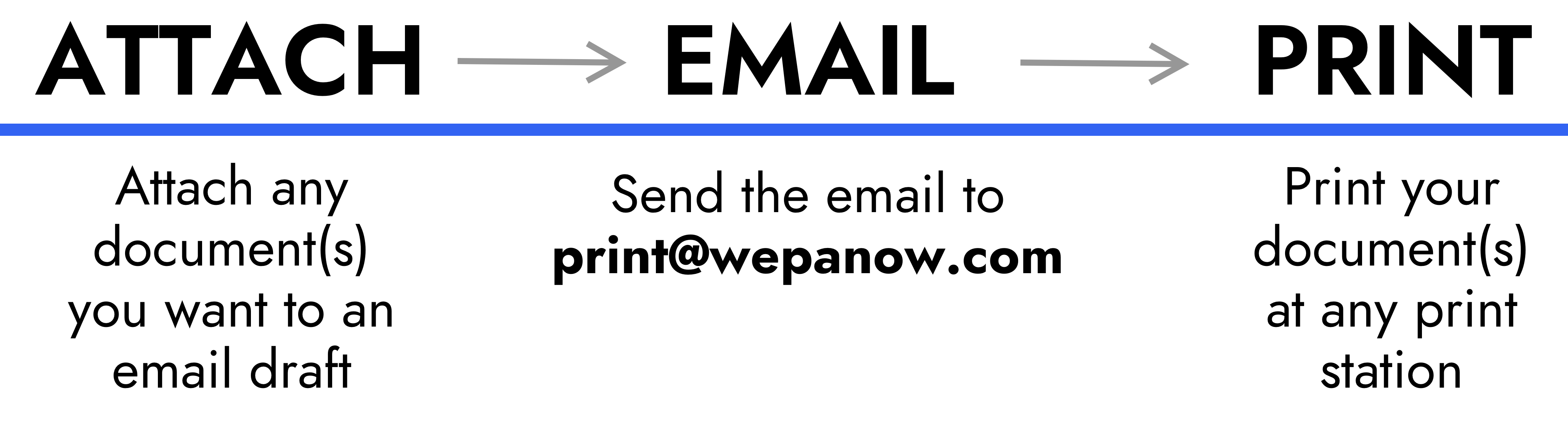
  • Email is a good option for a visitor or guest who is on their own device. When we don’t recognize the sender, we will process the attached files and provide one or more ‘Wepa Codes’ to release the files at a print station.
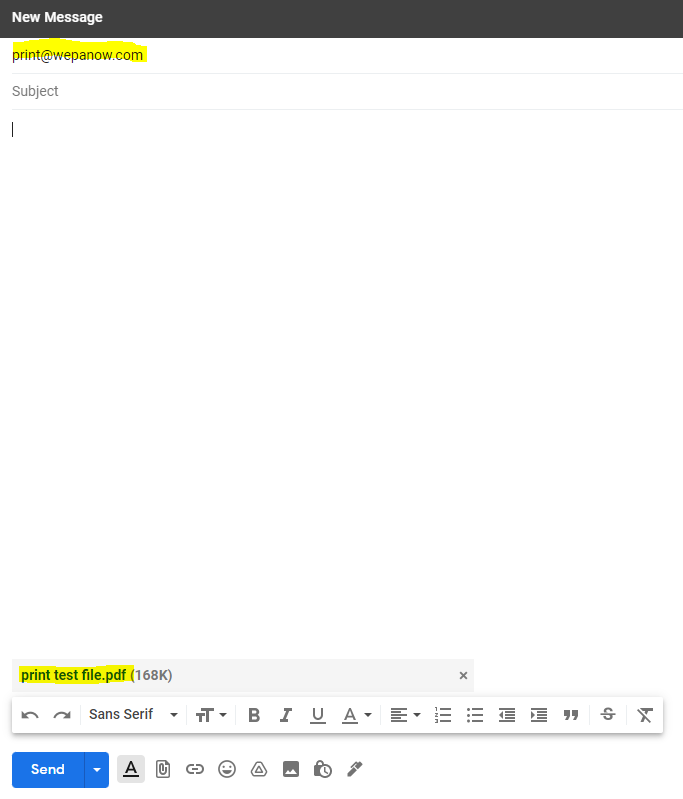
  • Open an email client and enter print@wepanow.com in the ‘To:’ field
  • Attach a supported file type to the email.
  • Optionally, set options like “Color” or “Duplex” in the email body. Refer to the Email-To-Print support article for more details about how to set print options by email.
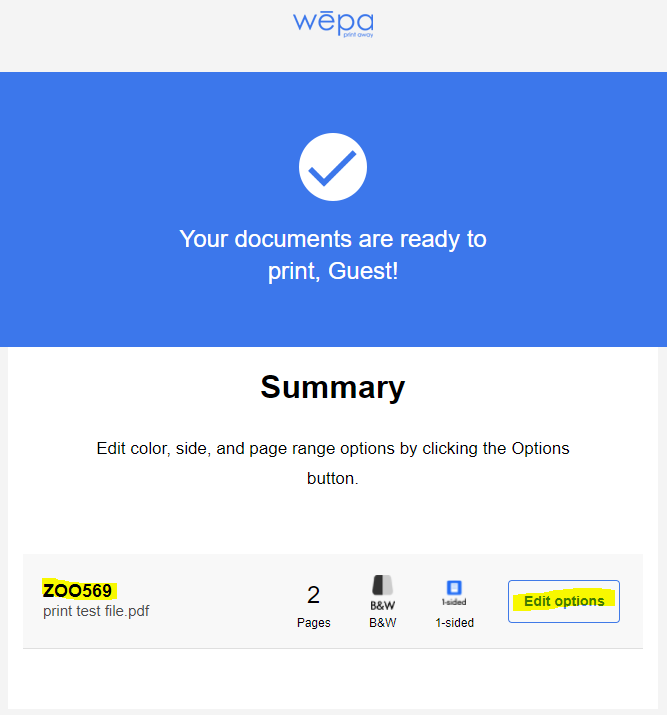
  • An email reply should appear shortly in the Inbox with the status of the upload attempt. If successful, a ‘Wepa Code’ will be available like below. Click the ‘Edit Options’ on the right to change the print settings:
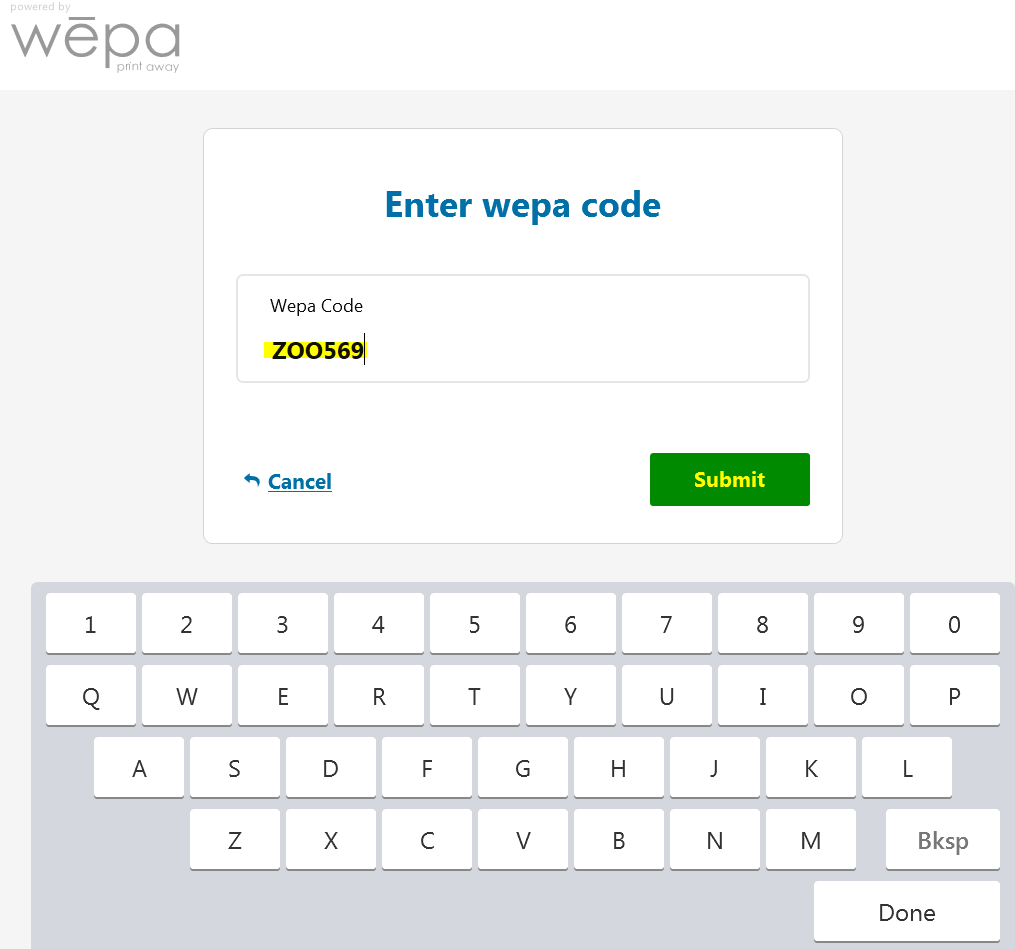
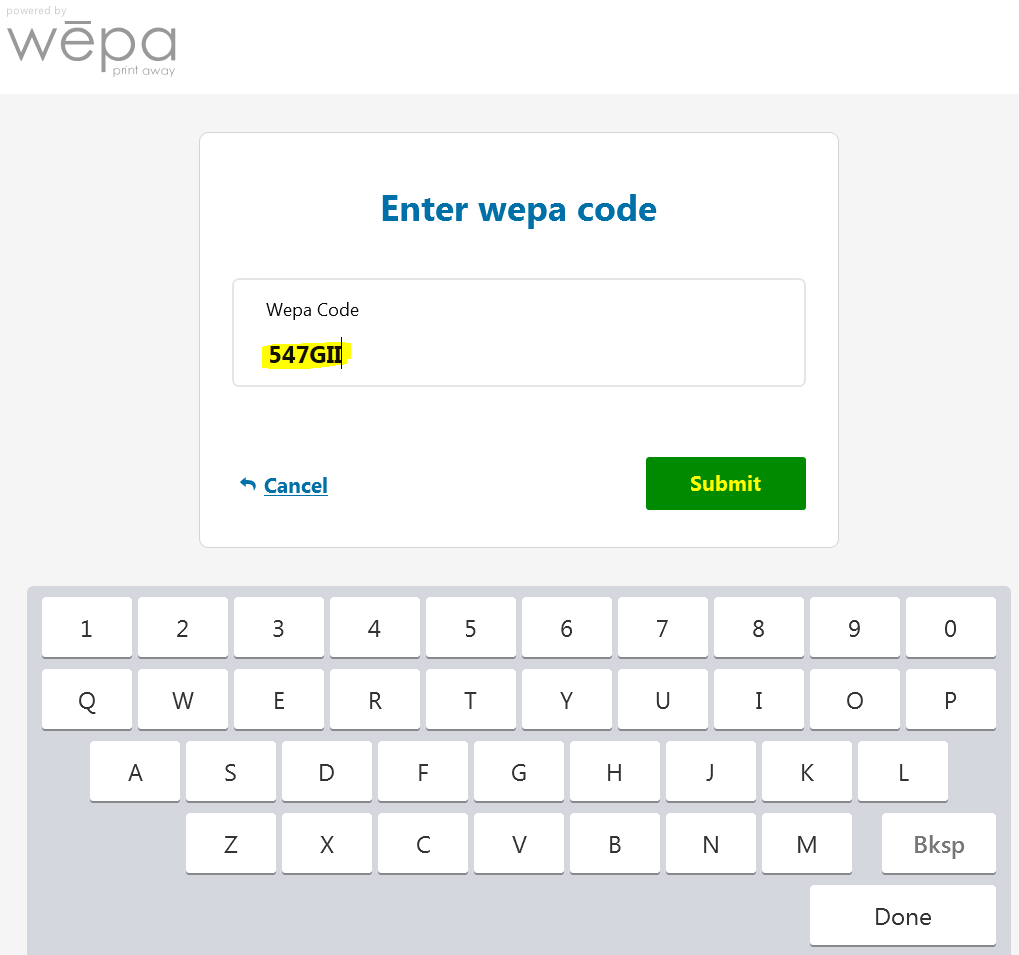
  • At the Wepa print station, select the ‘Don’t Have A Card’ button at the bottom and then ‘I Have A Wepa Code’. Enter the 6 alpha-numeric Wepa Code and then ‘Submit’:
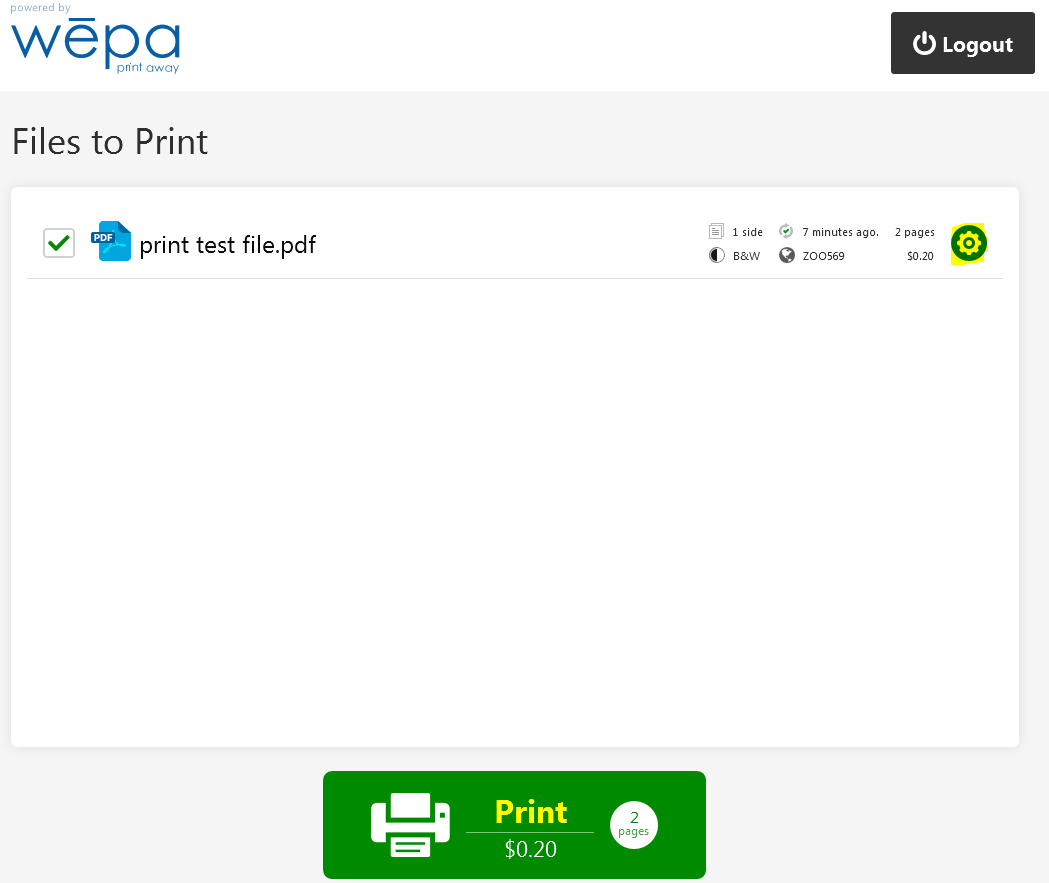
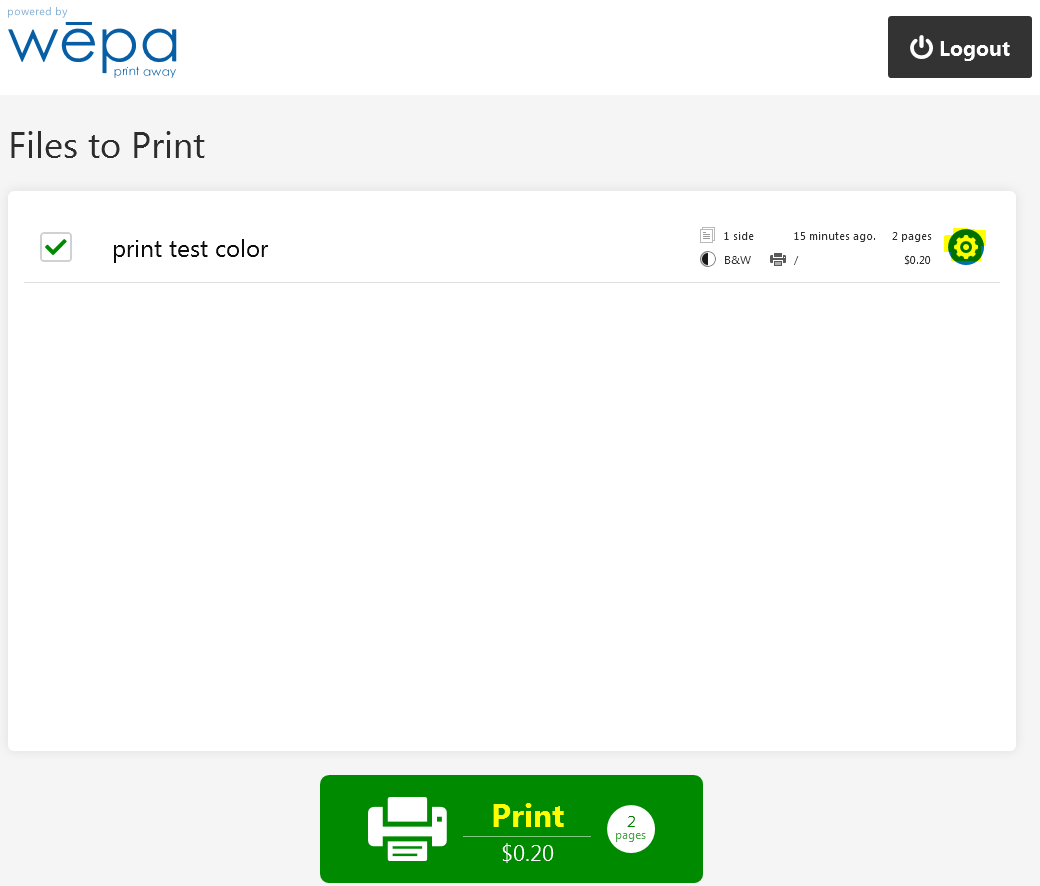
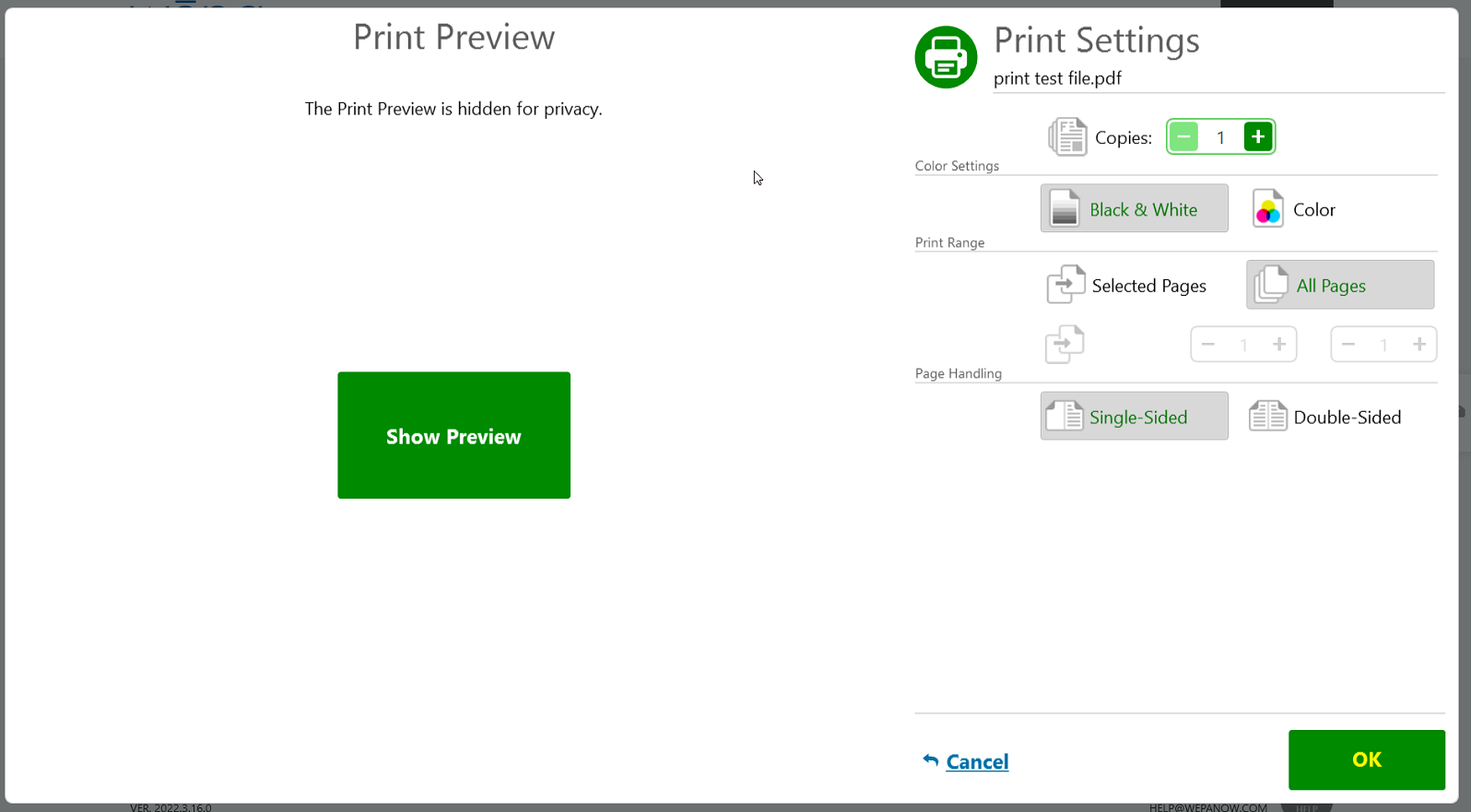
  • The uploaded file will appear. Select the cog settings icon on the right to adjust the print settings if needed. Select ‘Print’ at the bottom when ready to proceed to the payment view:

Wepa Print Driver

  • The Wepa Print Driver is a desktop client installed on school lab or library computers to upload files. One option is to have a Guest Print button.
  • Open any application and select ‘File>Print’
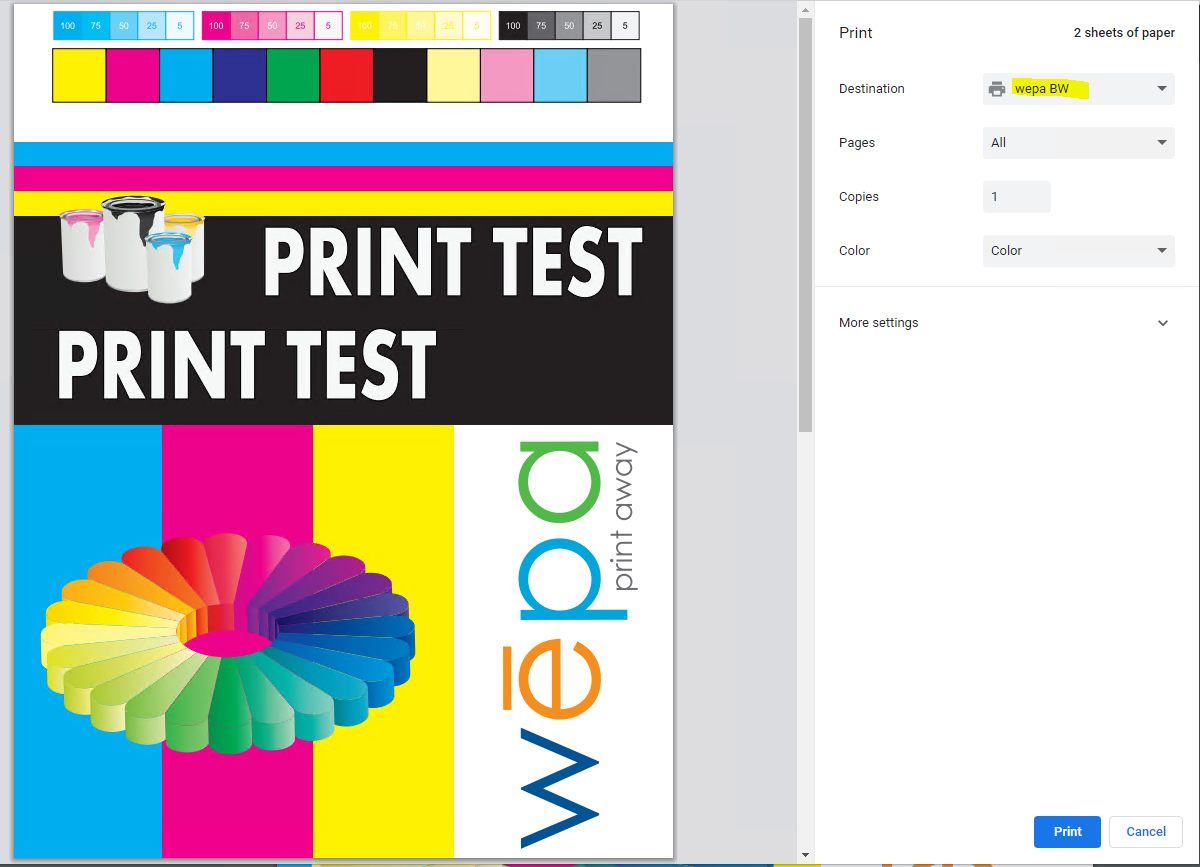
  • Select a Wepa printer from the Printer or Destination dropdown menu. The wepa BW and wepa Color will upload the file as black & white for BW and color for Color. The wepa 2-sided printers will upload the file as double-sided. Select Print to proceed with sending the file to the Wepa Print Driver desktop client:
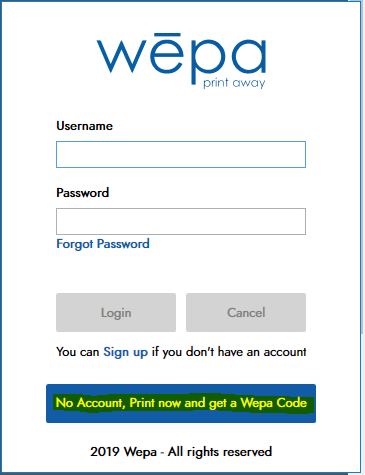
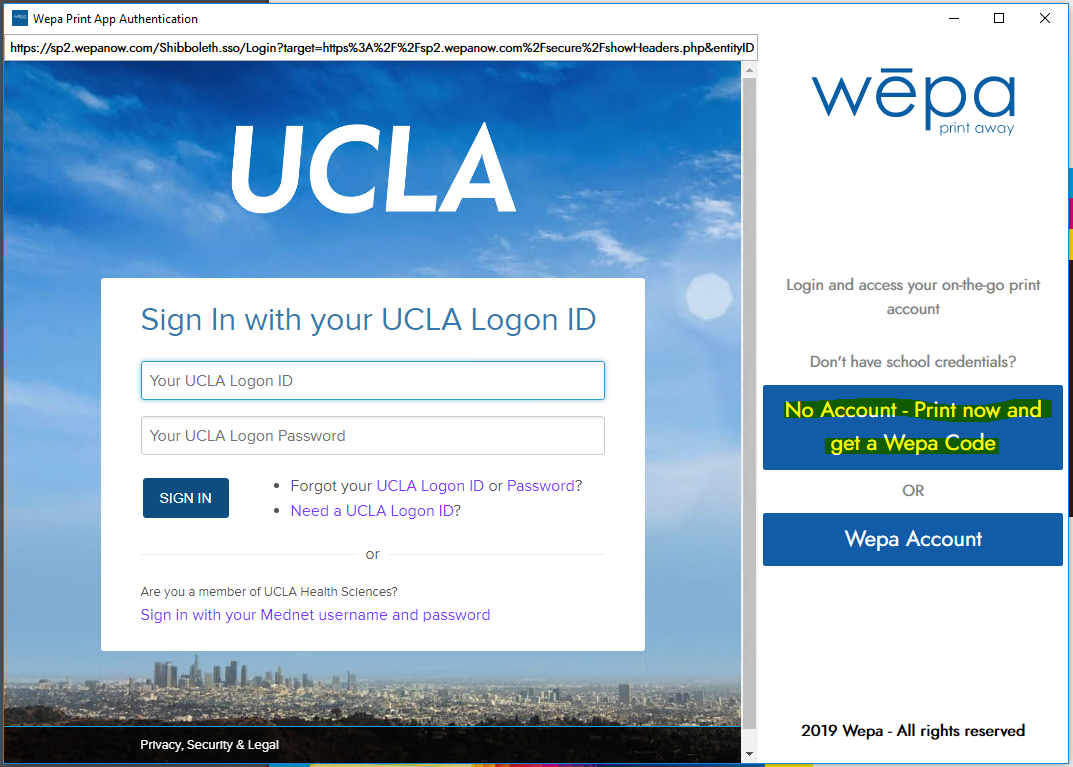
  • The Wepa Print Driver desktop client will launch (appearance may vary by location). Select the blue button ‘No Account, Print Now and get a Wepa Code’:
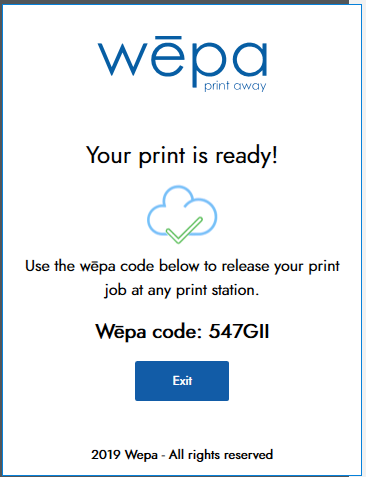
  • A Wepa code will be provided after the document uploads:
  • At the wepa print station, select ‘Don’t Have A Card’ button at the bottom and then ‘I Have A Wepa Code’. Enter the 6 alpha-numeric Wepa Code and then ‘Submit’

  • The uploaded file will appear. Select the cog settings icon on the right to adjust the print settings if needed. Select ‘Print’ at the bottom when ready to proceed to the payment view:

Cloud/USB Print Directly at Print Station

  • Any user can visit a Wepa print station without uploading a file and print directly at the print station.
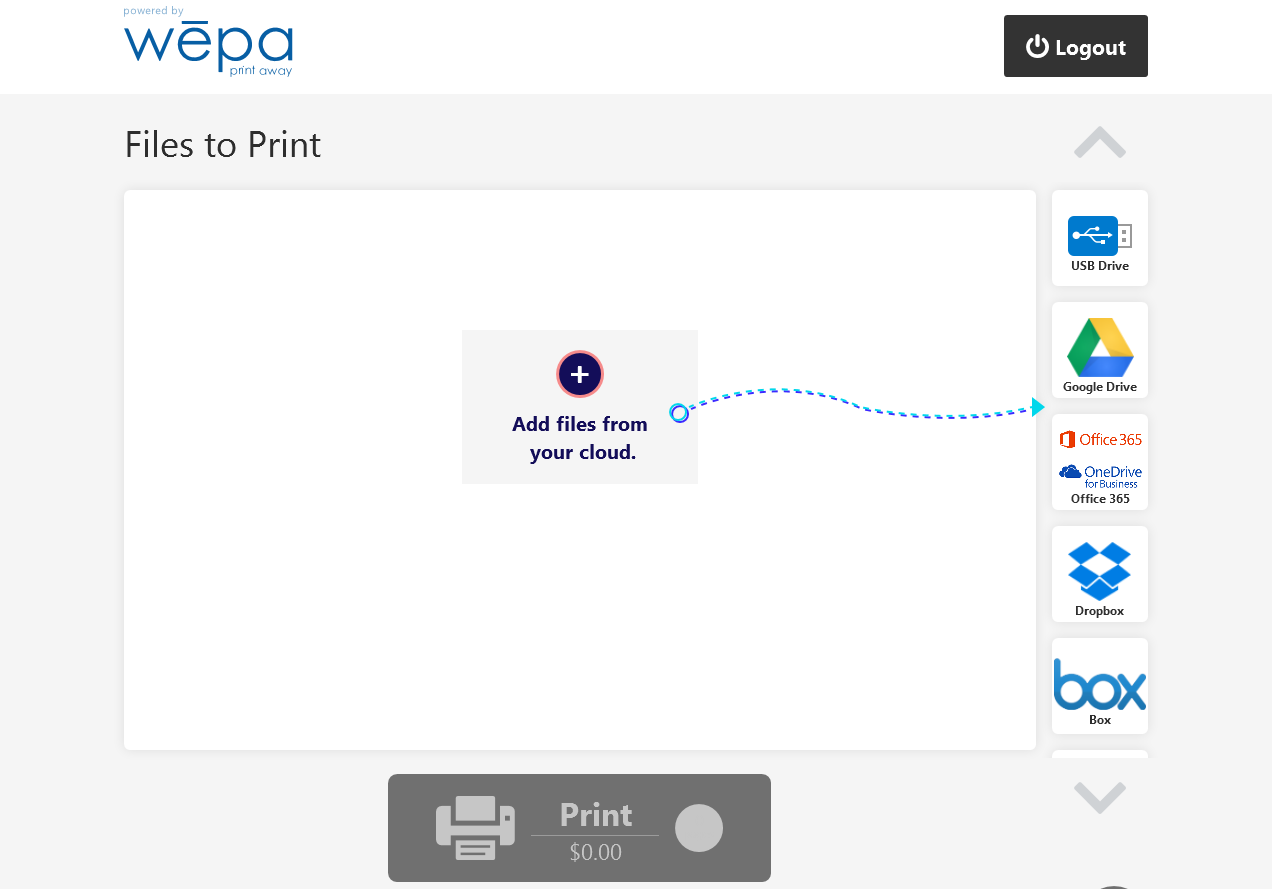
  • Select ‘Don’t Have A Card’ button at the bottom and then ‘Print From Cloud or USB (no account)’ button.
  • Next, insert a USB device or select a cloud provider on the right and login to get access to the cloud provider files:
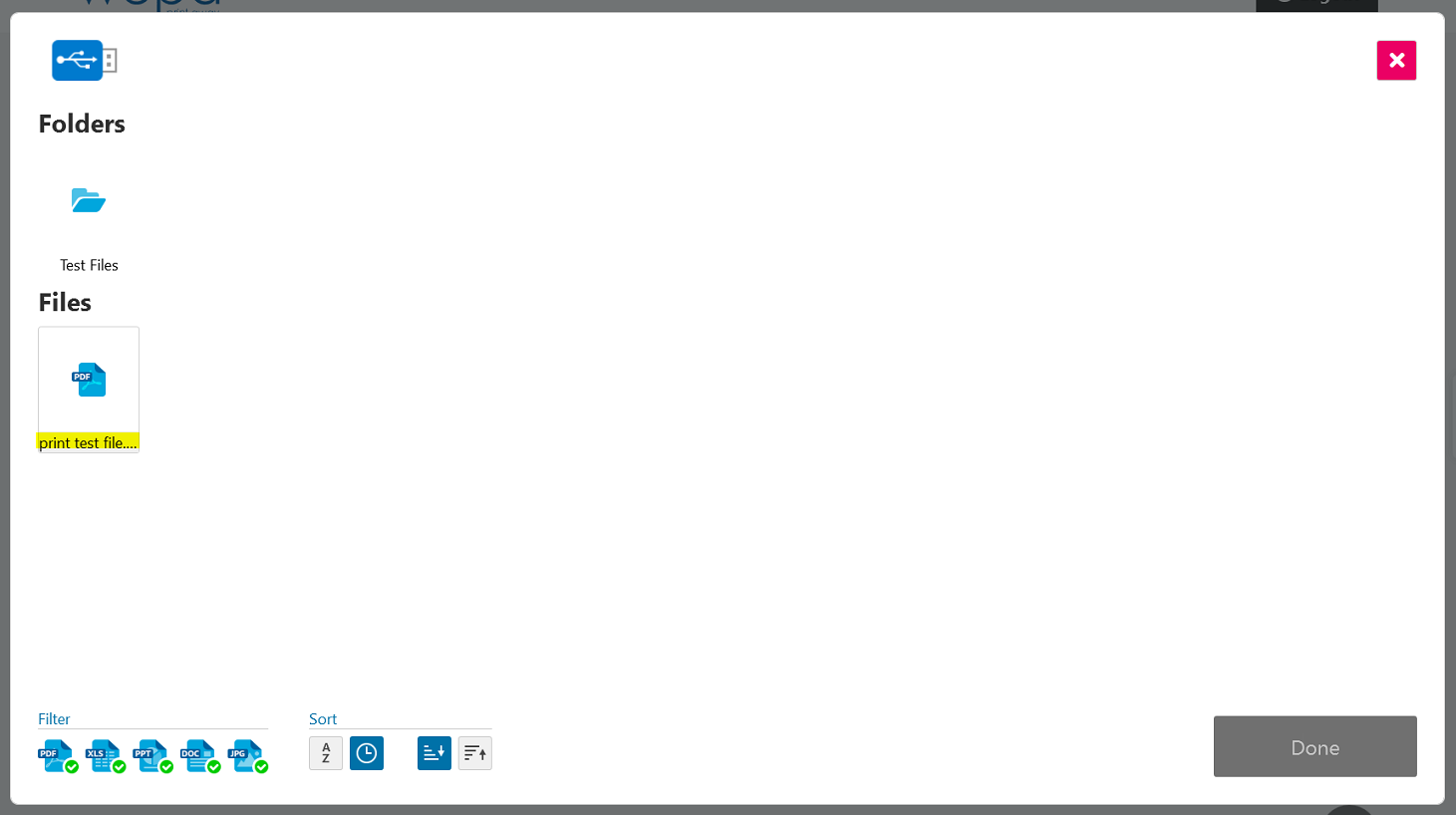
  • A file explorer will appear showing the folders and files available:
  • Select a file to set the print settings and/or preview the file. Select ‘OK’ in the lower right to proceed, followed by ‘Done’ on the file explorer to prepare the file for printing:
  • Once the file is prepared, it will appear in the print queue with the print settings. Select ‘Print’ at the bottom to proceed to the payment view:

Payment Methods

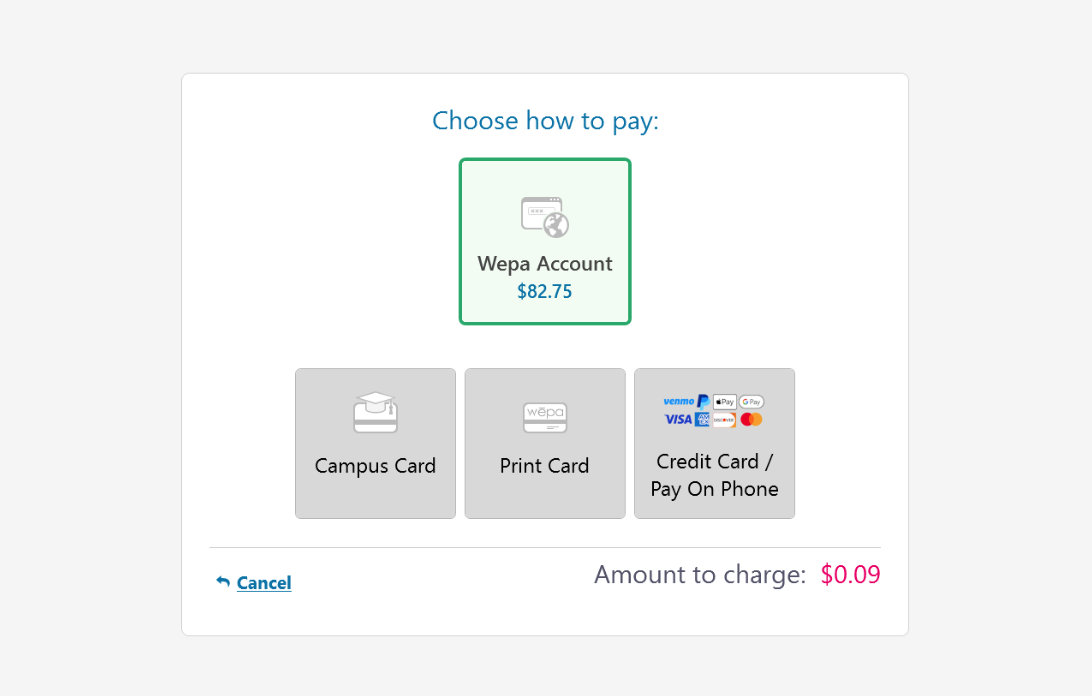
  • After selecting ‘Print’ at the wepa print station, the payment view will appear with options:
  • The ‘Wepa Account’ payment option is for users with an account setup with wepa. A username/password or a campus card associated with your account will be needed to proceed with this option.
  • The ‘Campus Card’ payment option is for users that have a campus card or guest campus card if available.
  • The ‘Print Card’ payment option is for Wepa print cards.
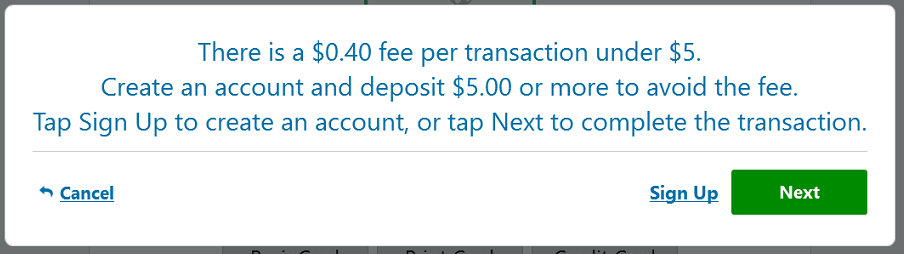
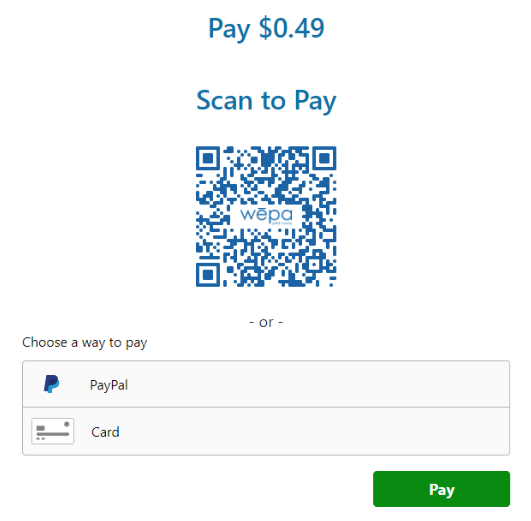
  • The ‘Credit Card / Pay On Phone’ option is for using a credit card or payment service. NOTE – there is a $0.40 fee per transaction under $5.00. A user can create a free Wepa account to deposit a minimum of $5.00 and avoid the fee.


Wepa Express

Updated: February 19, 2025

  • Touch-free printing
  • Secure release by another person

Wepa Express allows touch-free document release and secure document release by another person. Wepa Express is available in the Wepa Mobile App and at wepanow.com.

Get Started (Mobile)

If you don’t already have it, install the Wepa mobile app.

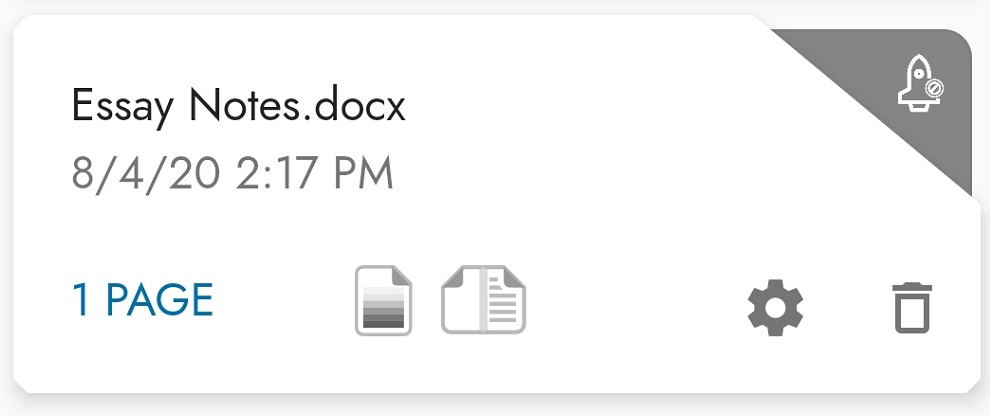
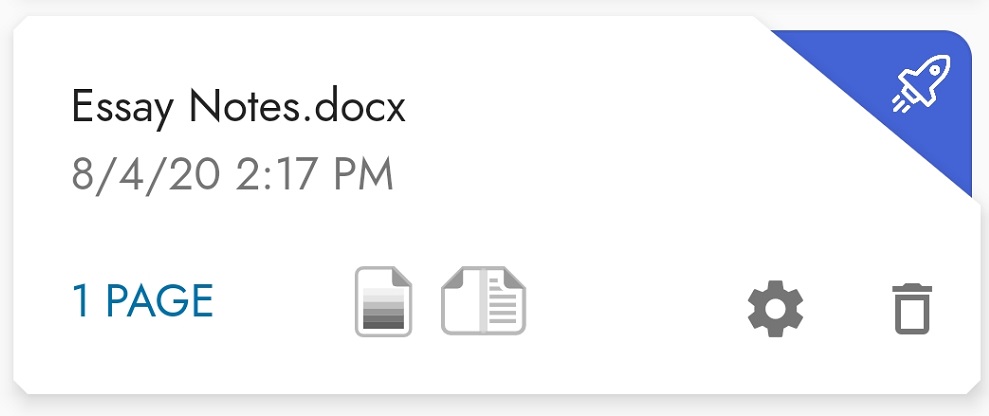
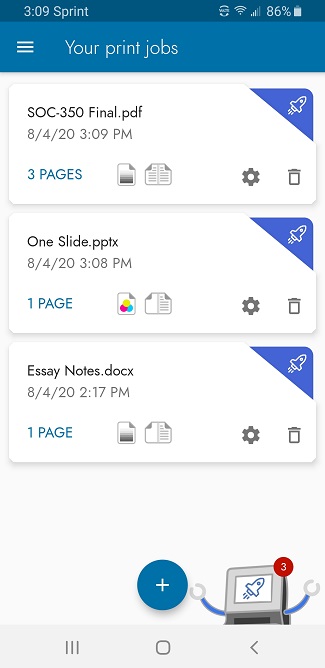
Tap the rocket to select which files to release. Files that you add in the mobile app will already be enabled.

This file is disabled and will not release automatically
This file is enabled and will release automatically


Then, tap the print station in the lower right to log in to a print station, or to give a code to someone else.

Tap the print station to proceed

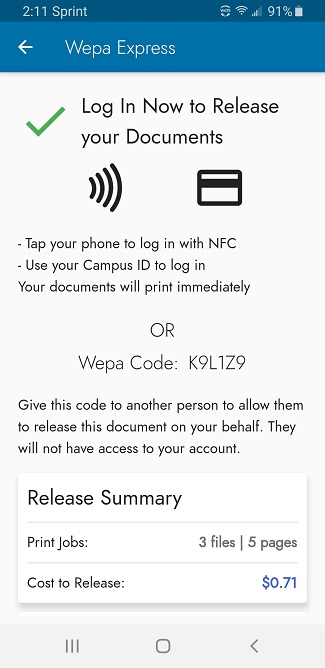
The Wepa Express summary screen will tell you if you are ready to release, and it will also show a Wepa Code if your documents can be released without a payment card swipe or tap at the print station. You may be prompted to add funds or change your payment method.

Log In

The Wepa Mobile App will tell you the best way to log in to the print station, using NFC (where available) or your campus card. Your documents will print immediately after you log in to the print station. If you need to swipe a card for payment and you do not use it to log in, you will be prompted to present the card, and then the documents will print.

Give someone the Wepa Code

Give the Wepa Code to another person to have them release the documents on your behalf (they won’t have access to your account). When the code is used, a confirmation screen will appear and the documents will print after pressing the Print button. This option is not available if a payment card needs to be presented to release the documents.

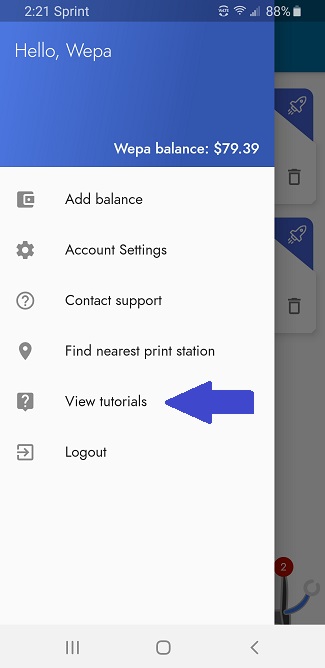
Need a reminder? Play the tutorial in the app.

Get Started (Web)

The process is similar at wepanow.com. Select documents for release, choose your payment method, and you are ready to go!

F A Q

What is Wepa Express?
Wepa Express allows you to set up your document release ahead of time, with payment. From there, you can release the documents at any print station without having to touch the screen, or you can give a secure Wepa Code to another person to have them release the documents on your behalf.

Why should I use Wepa Express?
Wepa Express allows you to print easily without touching the print station screen. With the Wepa Mobile App, you can print files from your phone or from cloud storage sources like Google Drive and OneDrive. Select your files to release and your payment method, and all you have to do is tap your phone or swipe your card to release your documents. It’s the fastest and safest way to print!

What can I do with the Wepa Code?
Right now, the fewer people touching the print station the better. Use the Wepa Code with a staff-assisted pickup service (where available). Faculty can accept Wepa Codes for assignments and release all of the documents for the class. A group of friends can send one person to release documents for the whole group.

What if the print station doesn’t have NFC and I don’t have a login card?
Some Wepa Print Stations do not have NFC to use for login with the mobile app. If you do not have a login card, log in by username and password. After logging in, use the menu option to “Tag” a card of your choice to use for login next time. Then, sanitize your hands.

RESOURCES

Email-To-Print (ETOP)

Quickly and conveniently print files by attaching them to an email, sending them to print@wepanow.com, and picking them up from any print station. The following support post provides more details!

Scanners

The following support post shows how to use the wepa scanners and upload your scans to a cloud source or print directly at the print station: