

wēpa institutional customers can deploy the wēpa Print App for Mac to multiple public computers by generating deployment files with the Wepa Lab Configurator.
The configurator creates a Settings.xml file and an install.sh script for the selected school and lab configuration. The WepaPrintApp.pkg installer must be placed in the same generated folder before running the install script.
- Use the Wepa Lab Configurator to generate Mac deployment files.
- Place WepaPrintApp.pkg in the generated deployment folder.
- Deploy the full folder to each public Mac and run sudo ./install.sh.
Download Wepa Lab Configurator for macOS (universal)
Version and Requirements
Mac Print App Latest Version: 2026.7.10
Download Mac Print App (universal)
If you are using a version below 2026.7.10, we recommend updating to our latest version.
Open the Wepa Lab Configurator
Download Wepa Lab Configurator for macOS (universal)
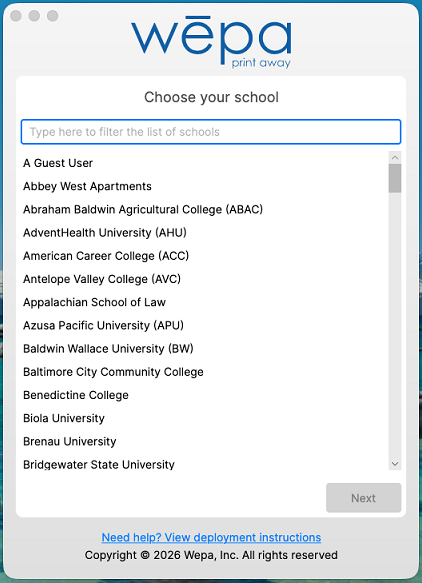
Select your school
Open the Wepa Lab Configurator on macOS and choose your school or institution.
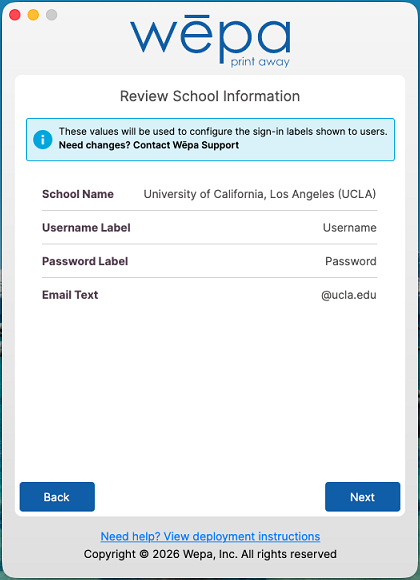
Review retrieved school configuration
The Wepa Lab Configurator retrieves the configuration available for your institution. Contact your wēpa Project Manager or help@wepanow.com if any of these values need to change.
Create Deployment Files
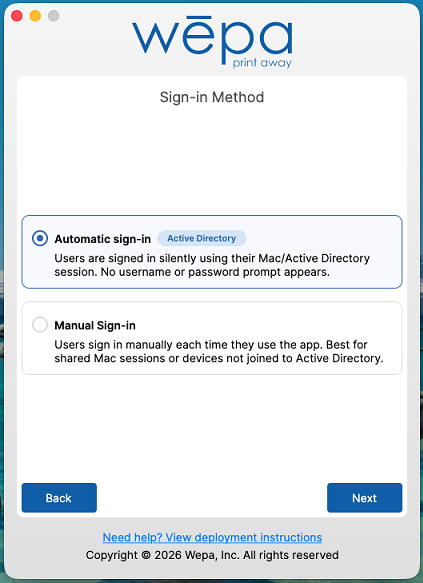
Configure Active Directory login, if available
If your school has approved Active Directory login, this screen lets you choose whether users are signed in automatically with their Mac / Active Directory session or prompted to sign in manually.
Select Manual Sign-in to configure the additional lab settings shown in the next steps. If Active Directory login is not available for your school, manual sign-in is selected automatically and the lab settings configuration appears next.
If Automatic sign-in is selected, the default printer selection appears next. The additional lab sign-in settings are skipped because Active Directory login removes the need for those manual sign-in options.
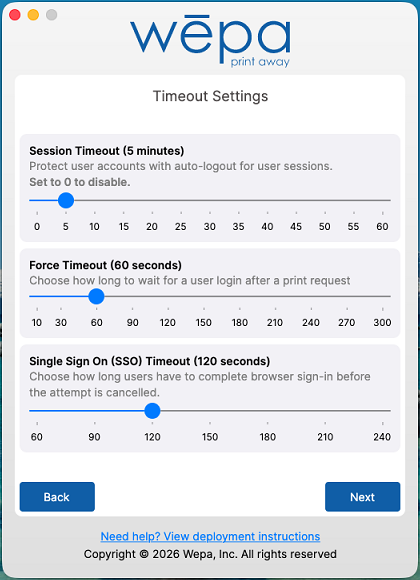
Configure manual sign-in timeout settings
Configure timeout settings for manual sign-in. The Session Timeout controls when users are prompted to log out or stay signed in. Set the Session Timeout to 0 to disable it when users log in and out of macOS with their own accounts.
The Force Timeout controls how long the Print App waits for a user to log in or choose guest printing after a print request starts.
If your school is set up with Single Sign-On, a configurable Single Sign On (SSO) Timeout is available as well.
Configure other manual sign-in options
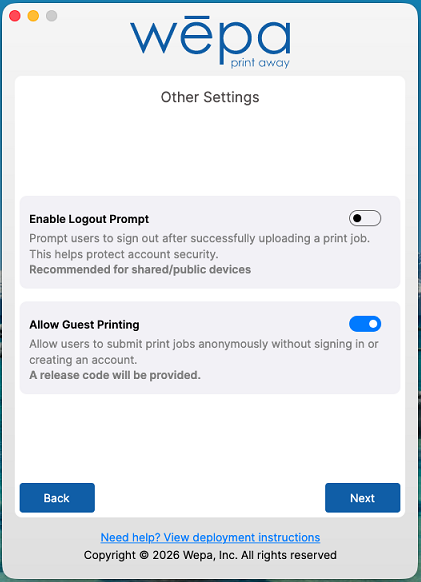
Configure the remaining manual sign-in options for shared or public Macs. Enable Logout Prompt prompts users to sign out after successfully uploading a print job, which helps protect account security on shared devices.
Allow Guest Printing lets users submit print jobs without signing in or creating an account. A release code will be provided so the user can release the document at a print station.
Configure default printer
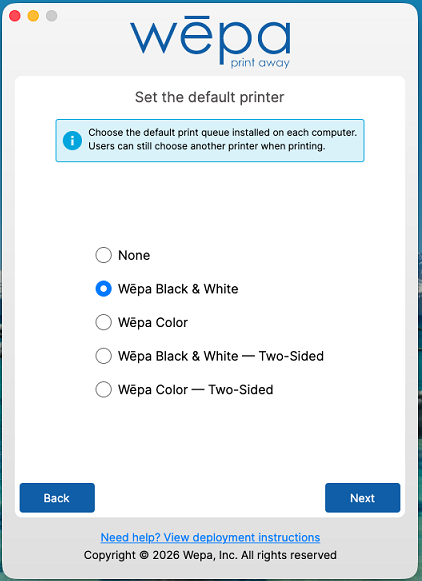
Choose which wēpa printer will be selected by default in the application. Users can still change to a different wēpa printer when printing. For Default Printer, select None to leave the existing default printer unchanged.
Confirm selected options
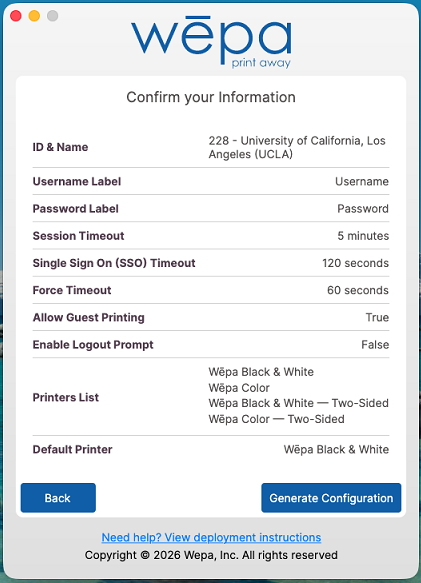
Review the selected configuration options. If the options are correct, select Generate Configuration. If changes are needed, select Back and update the configuration.
Review the final generated view
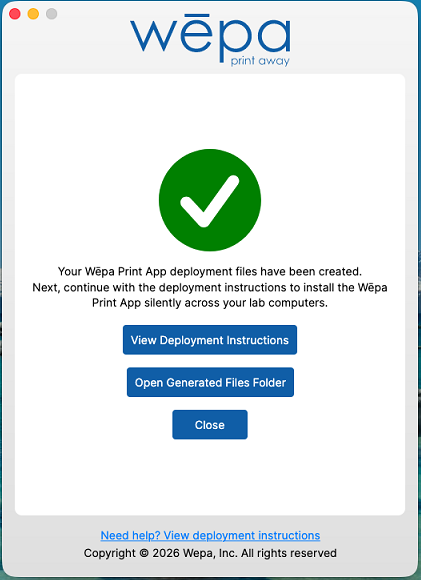
After the deployment files are generated, the Wepa Lab Configurator will show the final result.
- View Deployment Instructions opens this support page with deployment instructions.
- Open Generated Files Folder opens the folder where the generated Mac deployment files are located.
- Close closes the Wepa Lab Configurator.
Generated Files
Open the generated files folder
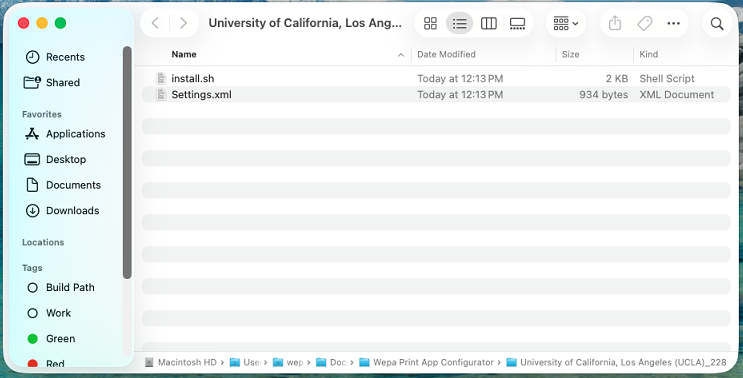
When the deployment files are generated, Finder opens to the generated folder location. The Mac deployment folder is created under:
~/Documents/Wepa Lab Configurator/<SchoolDescription>_<SchoolId>/
The generated folder should contain Settings.xml and install.sh. The Mac Print App installer package must be placed in the same folder and named exactly WepaPrintApp.pkg.
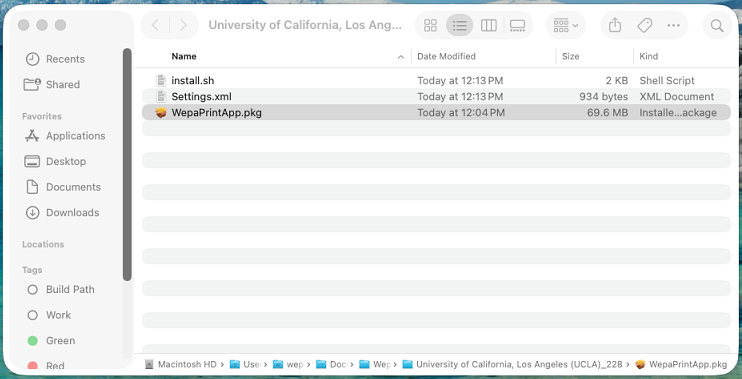
Add WepaPrintApp.pkg to the generated folder
Place WepaPrintApp.pkg in the same folder as Settings.xml and install.sh before deployment. The install script expects the package to be named exactly WepaPrintApp.pkg.
How to Deploy the Application
Deploy the full generated folder to each public Mac. The folder should include:
| File | Purpose |
|---|---|
| Settings.xml | Contains the school and lab deployment configuration generated by the Wepa Lab Configurator. |
| install.sh | Installs the package, places Settings.xml in the correct system location, and applies default printer settings if configured. |
| WepaPrintApp.pkg | The Mac Print App installer package. This file must be placed in the generated folder and named exactly WepaPrintApp.pkg. |
On each Mac, open Terminal in the deployment folder and run:
sudo ./install.sh
What install.sh Does
The generated install.sh script performs the deployment tasks below:
- Verifies it is running on macOS.
- Requires Settings.xml and WepaPrintApp.pkg to be in the same folder as install.sh.
- Creates /Library/Application Support/Wepa/PrintApp.
- Copies Settings.xml to /Library/Application Support/Wepa/PrintApp/Settings.xml.
- Installs WepaPrintApp.pkg with the macOS installer command.
- Sets ownership and permissions for the Wepa application support folders and Settings.xml file.
- If a default printer was selected, waits for the printer to be available and sets it as the default printer.
Default printer mapping
If a default printer is selected in the Wepa Lab Configurator, the install script uses the corresponding printer name below:
| Configurator Selection | Printer Name Used by install.sh |
|---|---|
| Wepa Black & White | WEPA_MON_SIM_PDF |
| Wepa Color | WEPA_COL_SIM_PDF |
| Wepa Black & White – Two-Sided | WEPA_MON_DUP_PDF |
| Wepa Color – Two-Sided | WEPA_COL_DUP_PDF |
| None | No default printer is set. |